@DonaldTrump I haven't worked with Gateway but did take a look for you...
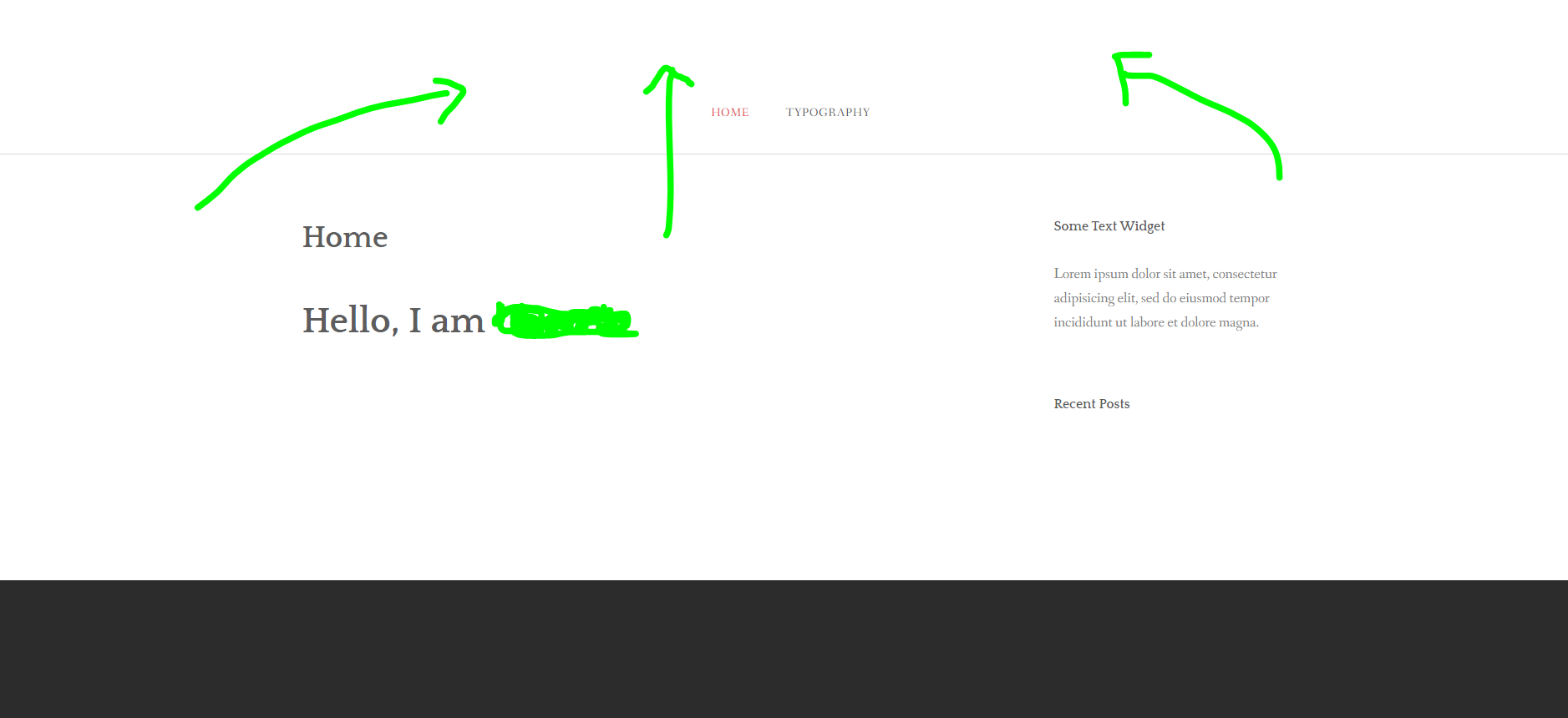
Header image not shown
Did you install the skeleton or the theme only? The skeleton is working perfectly OK, but I can imagine the theme alone does not. It is missing the definition of the image to be displayed.
When looking at the templates '/user/themes/gateway/templates/partials/header.html.twig' and 'header_alt.html.twig', the url of the background image is defined as:
TWIG
line 4: url( '{{theme_url}}/img/{{site.header.background}}' )
This means the template searches for an image in the '/img/' folder in the template's path and looks for the filename in property 'header.background' which is being defined in file '/user/config/site.yaml`
The file 'site.yaml' is created by the skeleton, but not by the theme. So, if you have installed the theme only, you can add the definition for the background image manually by setting the following in '/user/config/site.yaml':
YAML
header:background:background.jpg
Editing the 'Some Text Widget'
The text for this 'widget' is hardcoded (...) in template '/user/themes/gateway/templates/partials/sidebar.html.twig', line 19. You can edit the template yourself and change the hardcoded text.
Although it is not likely that the theme will be updated by the authors, changes you make to a template can best be done in an inherited theme. If not, you risk loosing your changes when the themes does get updated.
Again, I haven't worked with Gateway myself, but this is what I found sofar looking at the code.
@donaldtrump I have added a little advise in my answer:
Although it is not likely that the theme will be updated by the authors, changes you make to a template can best be done in an inherited theme. If not, you risk loosing your changes when the themes does get updated.
Thanks, I am currently trying to add a custom hero image but I'm not sure where to put the file.
I understand that I have to put: hero_image: <NAME>in the YAML file but I'm not sure where this YAML file is and I don't know where to put my image with the custom name.
@DonaldTrump Using your <NAME> as filename for the background image, the following files/locations should be used:
The reference to the image file should be defined in '/user/config/site.yaml', using:
YAML
header:background:<NAME>
The image file itself should be located in folder: '/user/themes/gateway/img/<NAME>'
By the way, a lot more is defined in '/user/config/site.yaml' and used by the theme. You might consider downloading the skeleton for Gateway and have a look at it.
I still can't seem to get it to work! My "user/config/site.yaml" looks like this:
YAML
title:Cherriedefault_lang:enauthor:name:Cherrieemail:d[email protected]taxonomies:-category-tagmetadata:description:'Grav is an easy to use, yet powerful, open source flat-file CMS'summary:enabled:trueformat:shortsize:300delimiter:'==='blog:route:/blogheader:background:hero-bg.jpg
I'm not using the Gateway theme anymore by the way.
My homepage just shows a hero white page with text.
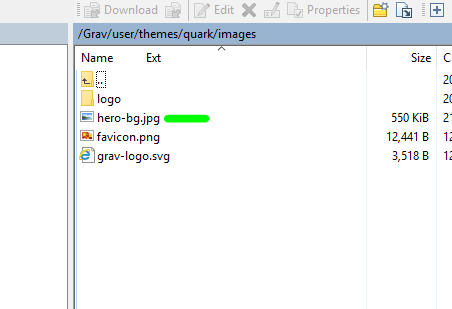
My "user/themes/quark/images" directory looks like this:
@DonaldTrump It's not necessary to change the 'SOME.TEXT.WIDGET' in ... sidebar.html.twig.
The best way is to make use of the »/user/themes/mytheme/languages.yaml« file to change the text to be displayed. If it is not yer there, copy from you main theme (in my case: /user/theme/Antimatter/languages.yaml)
Hope that helps.
Kind regards
Same is valid for the SEARCH and the ARCHIVES plugins.