Skip to content
Grav 2.0 is officially stable. Read the announcement →

Community guidelines

Please keep discussions civil and on-topic. Repeated violations may lead to a temporary ban.

General

CSS Image Loading

Started by Dan Hart 9 years ago · 18 replies · 5074 views
9 years ago

Ok, so total noob question but I'm trying to understand how you load images in Grav. For example, lets say I have a blog post and for each post I want the background image (hero) to be different for each blog post.

From what I gather it looks like I need to drop these images in the same folder as the markdown content.. but how I do load that into my template?

Here is a line from my template:
style="background-image: url({{ hero_image.url }});"

I'm unsure what "hero_image" is referencing. I thought it was referencing the image when you are looking at in the admin view, which is:
![hero_image](build_kit_hero.png)

I'm getting nothing to show on the page, so something is not working. I've been combing through the documentation and forum and cannot find something that spells this out.

Any thoughts out there?`

9 years ago

What does your blueprint file look like? Do you have a specific field for the hero image?

9 years ago

hero_image is just variable and you should find something like {% set hero_image = page.media.images|first %} in your template. In this example the hero_image is first image in page media collection.

9 years ago

You can do something like this:

  1. Add this field in your page blueprint, so that you can choose the desired image from admin:

<details>
<summary>Blueprint field</summary>

header.hero_image:
type: filepicker
folder: '@self'
label: Select Hero Image
preview_images: true
accept:

  • .png
  • .jpg

</details>

  1. Then in your twig template add this:

<details>
<summary>Set hero_image</summary>

{% set style = ' style="background-image: url(\'' ~ page.media.images[page.header.hero_image].url() ~ '\')"' %}

</details>

  1. Finally add {{ style }} wherever you want: '<div {{ style }}></div>'
👍 4
9 years ago

This is a good idea and would love to make this happen. I've got a blueprint in my blueprints folder that has what you suggested, but I'm not seeing anything yet in the admin. Should it display as another tab next to Advanced or something?

I think what I am missing is the Front Matter that sits at the top of the .md page. What should I have there?

last edited 10/06/17 by Dan Hart
9 years ago

Hi there. I have a simple blog and most posts have images associated with them.

My blog.item.html.twig template contains the following:

TWIG
{% if header_image %}
            {% if header_image_file %}
                {% set header_image_media = page.media.images[header_image_file] %}
            {% else %}
                {% set header_image_media = page.media.images|first %}
            {% endif %}
            {{ header_image_media.cropZoom(header_image_width, header_image_height).html }}
        {% endif %}

I add the image to the blog post's directory, and in the item.md frontmatter I have:

YAML
header_image: '1'
header_image_width: 1280
header_image_height: 827

Dimensions will vary based on your image. You can see an example here. Is this what you're trying to achieve?

9 years ago

Hey Andy, thanks for the reply and a link to your example! I'm trying to make it so that on the page I'm building it has a hero image for the background (via CSS and not inline) that a user could add from the admin panel.

My biggest problem is I'm still so new to Grav and just having a hard time wrapping my head around how it all ties together!

9 years ago

Oh I see, so you want a fullscreen background image? The term 'hero image' is a bit ambiguous these days :upside_down_face:

👍 1
9 years ago

Mmh well that depends, you can create another tab or just set a new field in one the default tabs. Anyway I'm going to explain you the easy way:

Let's suppose you have your blog-post twig template like 'item.html.twig', you should create a blueprint just for the blog-post following this folders structure:
themes > mytheme > blueprints > item.yaml

Inside the item.yaml file we set a new fieldset with a filepicker for your image. All this is going to be placed in the Content Tab:

<details>
<summary>item.yaml</summary>

title: item
'@extends':
type: default
context: blueprints://pages

YAML
    form:
      fields:
        tabs:
          type: tabs
          active: 1
          fields:
            content:
              type: tab
              title: PLUGIN_ADMIN.CONTENT
              fields:
                hero:
                  type: fieldset
                  title: Page Hero Image
                  fields:
                    header.hero_image:
                      type: filepicker
                      folder: '@self'
                      label: Select here the desired hero image.
                      preview_images: true
                      accept:
                        - .png
                        - .jpg

</details>

9 years ago

Your explanation definitely helps, thank you. My admin view is still not displaying anything for me. I cleared the cache on the dashboard to help but no luck. Here's what I've got:

buildkit.yaml
title: buildkit
'@extends':
type: default
context: blueprints://pages

YAML
    form:
      fields:
        tabs:
          type: tabs
          active: 1
          fields:
            content:
              type: tab
              title: PLUGIN_ADMIN.CONTENT
              fields:
                hero:
                  type: fieldset
                  title: Page Hero Image
                  fields:
                    header.hero_image:
                      type: filepicker
                      folder: '@self'
                      label: Select here the desired hero image.
                      preview_images: true
                      accept:
                        - .png
                        - .jpg

buildkit.html.twig
{% extends "partials/base.html.twig" %}
{% block top %}
{% set hero = page.collection|first %}
{% set hero_image = hero.media.images|first %}
<div class="top_wrap" style="background-image: url({{ hero_image.url }});">
{{ parent() }}
{{hero.content}}
</div>
{% endblock %}

buildkit.md

TXT
title: TJ
---

asdfasdfasdfasdf

testing hello world

Am I overlooking something?

9 years ago

Ok, the code you suggested worked great, it was a tabbing issue on my end. Guess I need to pay close attention to that. Thanks for the responses on all of this, very helpful!

9 years ago

I spoke to soon it looks like..

The variable is being set like so:
{% set style = page.media.images[page.header.hero_image] %}

And displayed like:
<div class="top_wrap" style="background-image: url("{{style}}");">

But what it renders is:
<div class="top_wrap" style="background-image: url("<img src="/themename/user/pages/02.builds/tj/build_kit_hero.png" />");">

Looks like a IMG tag is being rendered when all I need is the image path, but I'm not sure why. Is there a way to just grab the url path?

last edited 10/06/17 by Dan Hart
9 years ago

Don't make your life hard, my friend. Use the code I wrote you in the first message. Plus the answer to your last question is in that code ;)

@fjrfac:
{% set style = ’ style=“background-image: url(’’ ~ page.media.images[page.header.hero_image].url() ~ ‘’)”’ %}

9 years ago

Not trying to make life hard, just still trying to learn Grav. 😛

I went back through what you wrote versus what I had and saw where I screwed up.
So right now I do have this:
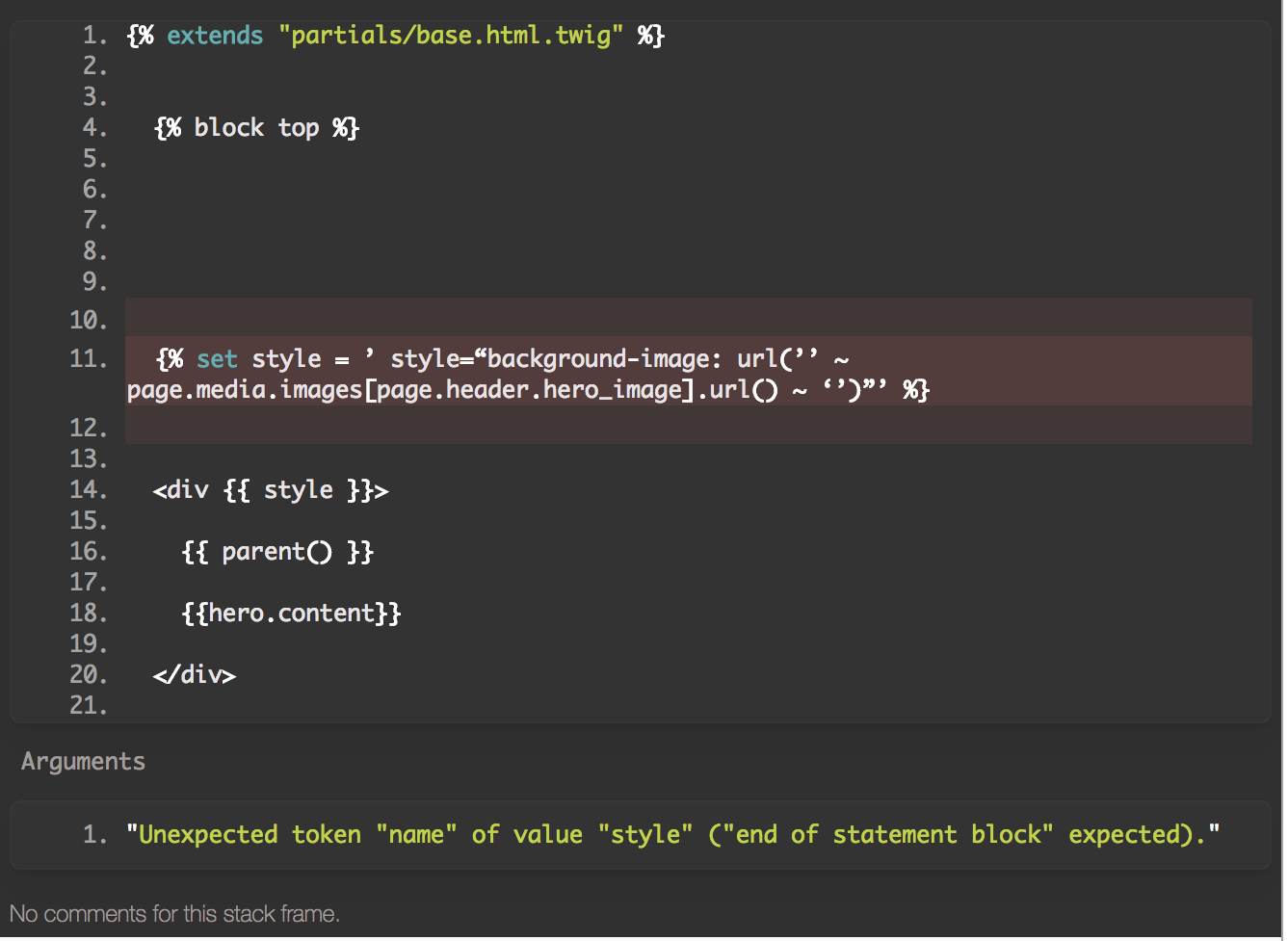
{% set style = ’ style=“background-image: url(’’ ~ page.media.images[page.header.hero_image].url() ~ ‘’)”’ %}

and this:
<div {{ style }}>

But I'm getting this error:
Twig_Error_Syntax
Unexpected token "name" of value "style" ("end of statement block" expected).

30 AM copy|684x500

9 years ago

Hey Underr, I've got an {% endblock %} in there, just doesn't show in that screenshot. Here's the full code of that:

TWIG
{% extends "partials/base.html.twig" %}
  {% block top %}
  {% set style = ’ style=“background-image: url(’’ ~ page.media.images[page.header.hero_image].url() ~ ‘’)”’ %}
  <div {{ style }}>
  {% endstyle %}
    {{ parent() }}
    {{hero.content}}
  </div>
  {% endblock %}
  {% block content %}
      <div class="blog_post">
        <h1 class="blog_post_title"><a href="{{page.url}}">{{page.title}}</a></h1>
        <div class="blog_post_date">Posted on <span>{{page.date | date("d M")}}</span></div>
        <div class="blog_post_content">
          <p>TEST</p>
          {{page.content}}
        </div>
      </div>
  {% endblock %}

Does {% style = ......... %} need an end block as well? I tried that but no luck.

9 years ago

Hi dan!
I will try to explain it with my bad English, sorry about that
At first - {% block %} ... {% endblock %} uses for partials/base.html.twig which is supplemented by the current template. These blocks are used in it - you can see references of this blocks into the partials/base.html.twig. Therefore, {% endblock%} is no needed for a {% set%} statement.
At second, it looks like your line {% set style = ’ style=“background-image: url(’’ ~ page.media.images[page.header.hero_image].url() ~ ‘’)”’ %} uses a wrong quotes because you just make copy-paste of @fjrfac answer ( copy-paste - the worst enemy of a developer) You need to replace wrong quotes - use only ' and "

last edited 10/10/17 by andrii burkatskyi
9 years ago

Hey guys, so I was able to get it working all the way through. Most of the reason I couldn't get things working because I didn't have enough understanding on how TWIG works and some of the naming conventions within GRAV. I found these 2 videos last night which really helped:

https://www.dev-metal.com/6min-video-introduction-twig-php-templating-engine/
https://www.youtube.com/watch?v=Mg7ZIK6Xmos

Here's where the code ended up:

YAML
title: buildkit
'@extends':
type: default
context: blueprints://pages

YAML
form:
  fields:
    tabs:
      type: tabs
      active: 1

      fields:
        content:
          fields:
            header.hero_image:
              type: pagemediaselect
              label: Select hero image

TWIG
{% extends "partials/base.html.twig" %}
{% block content %}
<section id="hero-build-kit" class="intro-cover d-flex"
{% if page.header.hero_image %}
style="background-image: url({{page.media[page.header.hero_image].url}}) ">
{% else %}
Stuff
{% endif %}
{% endblock %}

TXT
etc...

MD

YAML
title: TJ
hero_image: testimage.jpg
---
Lorem ipsum

Really, thanks for helping me through this. I feel like I've started (just a little!) to understand how all of this pieces together. One follow up question to all of this...

Using my YAML file is it possible to reorder the fields in the CMS? I plan to have a decent amount of fields in there and would like the order of them to make sense to the user.
Thanks again!

👍 1

Suggested topics

Topic Participants Replies Views Activity
General · by Jerry Hunt, 4 days ago
2 80 10 hours ago
General · by pamtbaau, 15 hours ago
1 51 15 hours ago
General · by Andy Miller, 1 day ago
0 45 1 day ago
General · by Marcel, 12 months ago
6 346 5 days ago
General · by Duc , 5 days ago
3 40 5 days ago