Skip to content
Grav 2.0 is officially stable. Read the announcement →

Community guidelines

Please keep discussions civil and on-topic. Repeated violations may lead to a temporary ban.

Support

Multi language nav menu

Solved by Roeland View solution

Started by Roeland 8 years ago · 6 replies · 2773 views
8 years ago

Hi,

I've setup everything in 2 languages. But right now all pages are listed in the menu instead of language specific pages.
This is how pages are loaded in the navigation. What would i change to display pages of the current language only?
{{ _self.loop(pages) }}

8 years ago

@aristotletalks The chapter Multi-Language Basics gives a very good description on how to setup multiple concurrent languages. Making an excerpt of that chapter takes more time then reading it...

if im correct i need to add language specific twig files

Twig files are for layout, not content. Unless your languages require different layouts, the standard twig files are all you need. Translations are part of the content files and set in the header/frontmatter of the page. The docs on multi-language will show you how.

But right now all pages are listed in the menu instead of language specific pages.

My first guess is that this is caused by the folder structure being used. All language variation of a page should be in the same folder and named after its language:

TXT
pages\
  01.home\
    default.en.md
    default.es.md
  02.about-me\
    ...

How does you folder structure look like?

👍 1
last edited 10/26/18 by pamtbaau
8 years ago

Thanks, my approach was wrong cause i was hoping to just duplicate and edit (basicly i did the most non-developer approach possible by doing as less as possible and using grav out of the box). I setup the structure by copying the english demo structure and creating a second language structure. I did this by copying the existing pages in the admin panel and than saving them as dutch. Multi-Language Routing in the multi language documentation shows me what you're pointing out.

So right now i have:

  • A page for every language in the backend > i'll reduce it to a single page for every language and edit the language md files.

    pages\
    01.home\
    default.en.md
    02.home\
    default.nl.md
    03.home\
    default.es.md

Just some notes:

  • Copying the home page in backend and saving as a different language got me stuck. It wouldnt allow me and strange things happened. (duplicate non-editable content, different home titles on every page load, disappearing homepage on edit and saving a copy of a homepage)
  • Using the language switcher made all the entered content dissapear for all pages (or copying and saving the home page did).
  • Copying the homepage and saving it as the third and last language is not possible, strange things happen and it keeps duplicating into 2 languages. Editing the slug or folder name doesnt help.
    -> altho all of the above is caused by my wrong approach.

i've been reading and i get the whole structure now! (Grav is actually one of the most straightforward cms ive seen and it is indeed fun to work with)

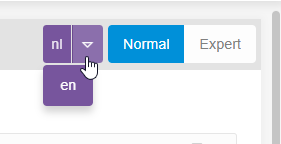
What i don't get is what this language switcher actually does?:
image|281x144

Thanks for pushing me in the right direction.

last edited 10/26/18 by Roeland
8 years ago

@aristotletalks Somehow I'm confused...

You say:

So right now i have

Is that the folder structure you think that should be ok, or the folder structure you had before?

Anyway, the folders structure you are showing is not as it should be. All language variations of a page should be in one single folder. Like:

TXT
pages\
   01.home\
      default.en.md
      default.es.md
      default.nl.md

To translate the title and the menu for each language other then the preferred language you use the frontmatter of the page. If Dutch is an alternative language, the frontmatter in file 'default.nl.md' could look as follows:

YAML
---
title: Titel in Nederlands
slug: url-in-nederlands
---
Inhoud in Nederlands

When you browse to http://mydomain/url-in-english you will see the English menu and English pages (if English is preferred). If you browse to http://mydomain/nl/url-in-nederlands you will see the Dutch menu's and Dutch pages.

In 'user/config/system.yaml' you need to add a languages section, with at least containing:

TXT
languages:
   supported: [en, nl, fr]   <--- English will be default language shown in http://mydomain/

See docs for more options in language section.

What i don’t get is what this language switcher actually does?

If the use of the language dropdown in Admin panel is not clear, it might indicate your folder structure is not correct. Else, the language dropdown will switch between the Dutch and English versions of the page in the same folder.
8 years ago
  • That was the folder structure i had before. I didn't set it up right. I changed all pages to exactly how it should. So 1 folder per page, multiple language md files inside.
  • The frontmatter of the page > yes i understand.
  • If the use of the language dropdown in Admin panel is not clear, it might indicate your folder structure is not correct. Else, the language dropdown will switch between the Dutch and English versions of the page in the same folder.
    -> Exactly.

So basically i haven't used the admin panel properly from the start (i wouldn't have ran into this problem otherwise). I should have saved the existing demo pages as the second and 3rd language. And then edit the content using the language switcher (if i wanted to use the admin panel only). Working with md files is actually really nice.

I'll post the changes i made when im done.

8 years ago Solution

Just to close this ticket i post the solution thanks to pamtbaau's support.
To keep it simple:

  • You have 2 folders;
    /user/pages/ > This is where you edit the page content
    /user/themes/your-theme-folder/templates/ > This is where you edit the page html and template code
  • So Lets say my default language is English and i want a multi language home page, second language is german. To have multi language properly working, you can simply go to the /user/pages/ folder, open the folder named 01.Home and copy/paste/rename home.en.md to home.de.md.

Than in the same folder you probably have modulair blocks (for which you'll find the html markup in the folder named /user/themes/your-theme-folder/templates/modulair/. Let's say the first block is _intro. Open this folder and copy/paste/rename intro.en.md to intro.de.md and edit the content inside.

And that is it, no need to translate twig files inside the templates folder.

👍 1

Suggested topics

Topic Participants Replies Views Activity
Support · by Thomas, 1 week ago
2 56 14 hours ago
Support · by Anna, 3 days ago
2 61 17 hours ago
Support · by Justin Young, 18 hours ago
1 32 17 hours ago
Support · by Duc , 1 week ago
2 66 5 days ago
Support · by Colin Hume, 1 week ago
2 59 6 days ago