
The Grav admin has carried the project for the better part of a decade. Admin Classic was always pragmatic: a Twig-rendered interface, jQuery for the dynamic bits, built directly on top of the same render pipeline that serves the public site. It worked, it shipped, it scaled to a global community of plugin and theme developers, and it made Grav feel approachable from day one. But it was always a server-rendered admin, and as the rest of the world moved to API-driven interfaces, the gap between what people expected an admin to feel like and what we could practically ship in the classic architecture got harder to achieve.
Admin Next is the answer to that. It's a clean-slate rebuild, a single-page application written in SvelteKit 5, served as static assets by your webserver via the Grav Admin2 plugin, and powered entirely by the first-party Grav API plugin. It's the default admin in Grav 2.0, it's free, and it ships with everything I'm about to walk you through.
I'm going to do this as a tour rather than a feature list. Some of these screenshots will be added in the days after this post lands. The features themselves are all live in the latest RC today.
Important
Admin Next is the name of the SvelteKit5 app itself, while Admin2 is the Grav plugin that Admin-Next ships in. So when discussing the funtionality we might use the name Admin Next, but just realize that it needs Admin2 to be able to be installed and and served via a Grav route (default is /admin like Admin Classic). Admin Classic is the name we use for the original Grav 1.x admin plugin to differentiate it when talking about Admin Next for Grav 2.x
Why a New Admin
A lot of the answer is the same one I've given for the broader 2.0 release: the underlying library stack had aged out, PHP 8.3+ support meant a generation of updates, and at some point a refresh of the chrome made more sense than another year of patching the old one. But the admin had its own specific reasons.
Classic admin was tightly coupled to Twig rendering and the public-site request lifecycle. Every page in the admin was a server-rendered template; every interaction round-tripped through PHP. Extending it meant either writing more Twig and PHP or grafting jQuery on top of existing template. Theming was constrained by the same Twig templates that rendered everything from configuration to pages and plugins.
Admin Next throws that out. The admin is an SPA, the data layer is the API plugin, and every part of the admin (sidebar, dashboard, page editor, configuration forms, plugin pages) is a component that other plugins can extend in well-defined ways. Plugins ship web components for their custom field types, register sidebar items, menubar actions, floating widgets, context panels, settings panels, and custom reports, all through clean event hooks documented in the previous posts in this series. This is all bundled up and shipped as a Grav Admin2 plugin.
The result is an admin that's fast, responsive, modern, and built for the next decade rather than carrying the constraints of the previous one.
The Shell
The first thing you'll notice is the shell. The sidebar lives on one edge, the topbar across the top, and everything else lives inside a content area that's the only part of the layout that scrolls. The whole thing is fixed framing around a single scrolling region, which sounds basic but is the foundation for a lot of the rest of the polish.
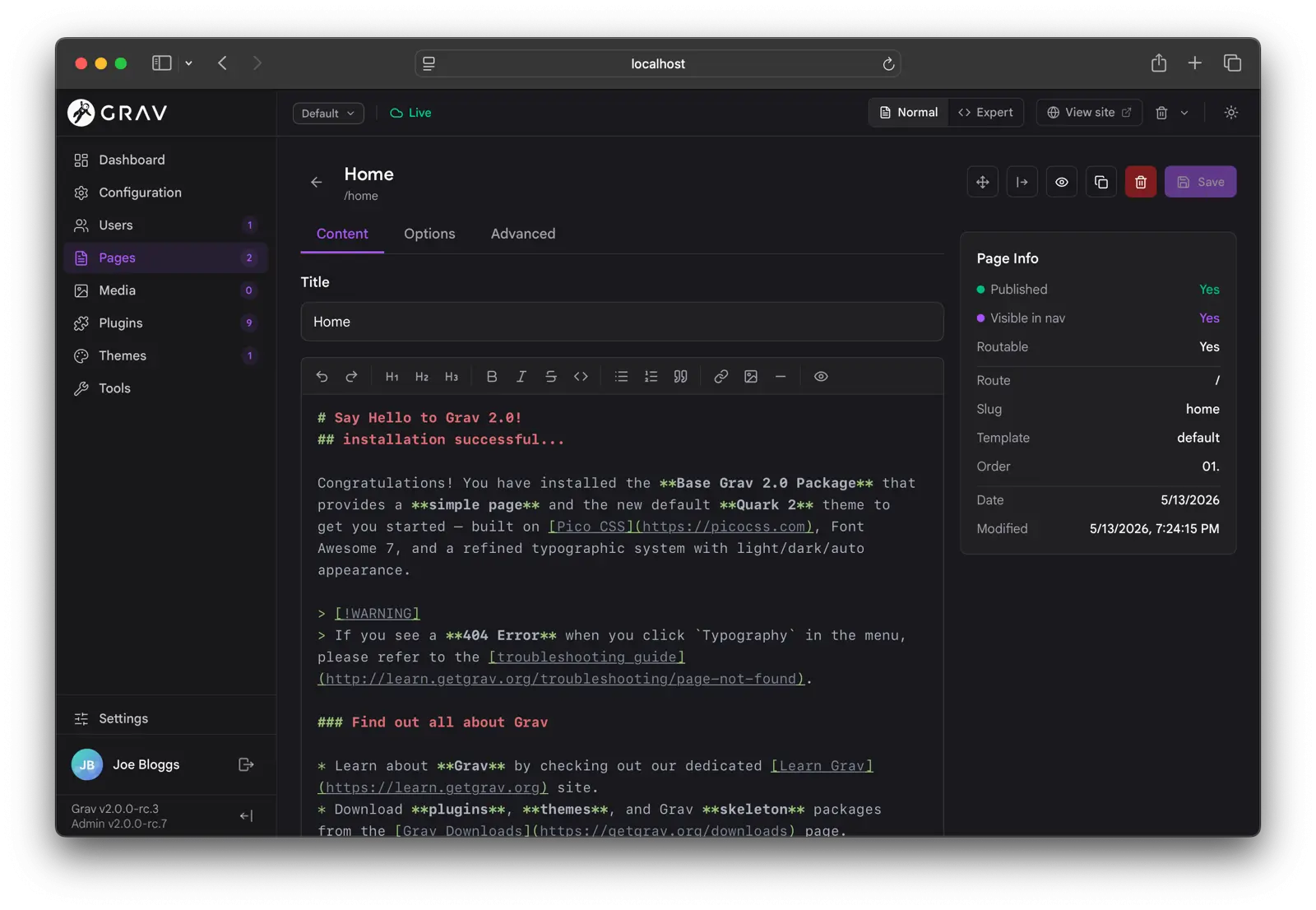
And of course available in "light mode":

A few details worth noting:
- Admin Next ships with full light and dark mode support, along with customizable accent color, logo, fonts, font-sizes, and more! You can override many of these site-wide options to suit your personal preference without impacting other users.
- The environment selector in the topbar lets you switch between
Defaultand anyuser/env/*configuration target without ever leaving the admin. Saving a config writes to the env you've selected via a differential save (only the keys that differ from the effective base), so the workflow matches the hand-edit one you've always used. You can even create a fresh env from the dropdown. - The presence cluster next to the environment selector shows live avatars of every other admin who's currently editing alongside you, with a colored dot indicating their sync state. It's globally visible because "who else is here" is a global question, not a per-page one. This requires the optional sync plugin to be installed to function.
- The sidebar version labels at the bottom show your running
Grav vX.X.XandAdmin vX.X.Xversions, and they refresh automatically after a self-update so you never wonder whether the upgrade actually took. - The whole thing is responsive down to phone widths. The sidebar slides off on mobile, the toolbars collapse to icons, the page lists drop their secondary columns, and the search input expands to fill the row when it's focused.
The Dashboard
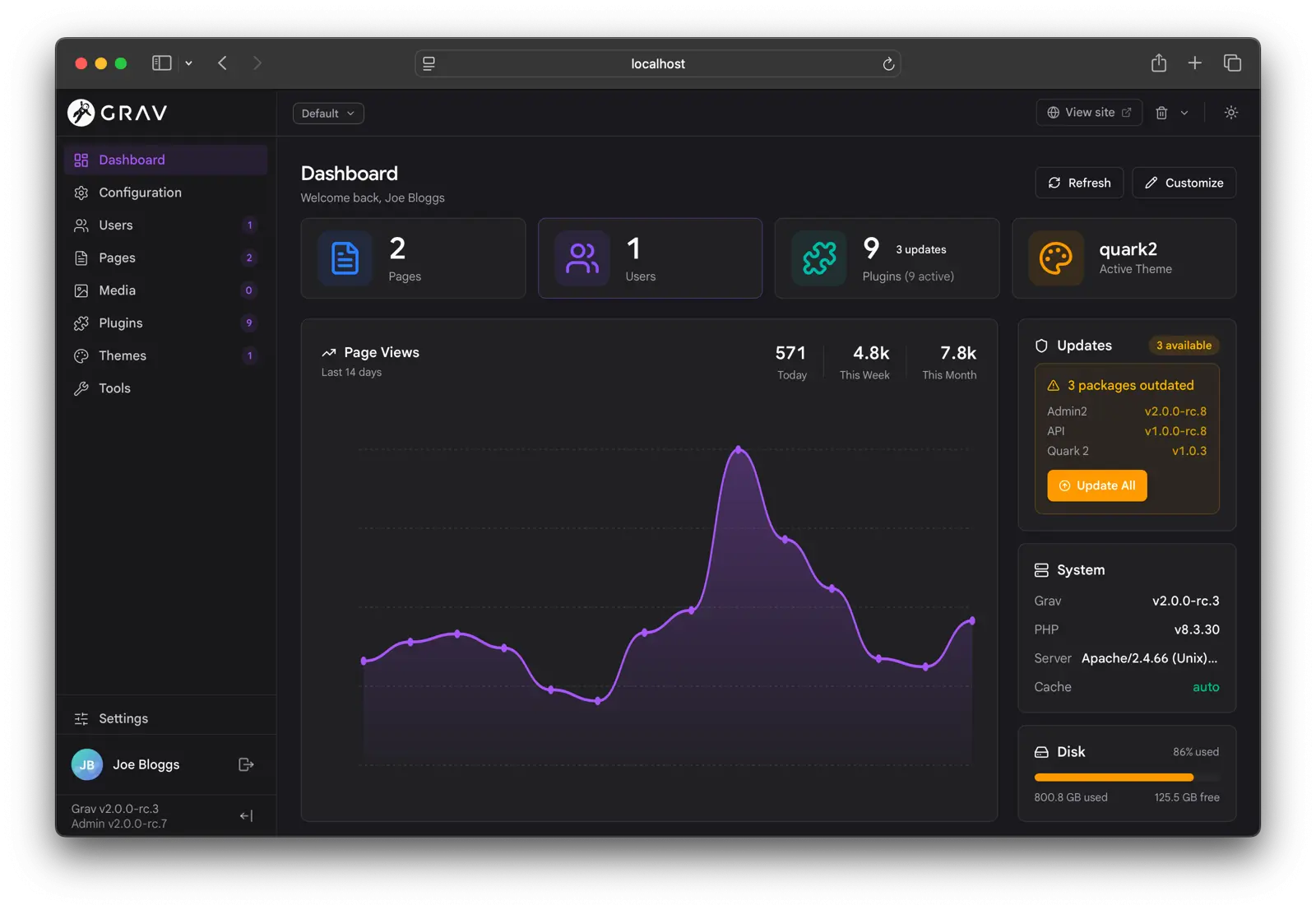
The dashboard is where most use see first, and it's the part of Admin Next that's evolved the most over the Beta and RC cycles. The short version: it's a fully customizable, multi-widget grid that every user can rearrange to taste, and that super-admins can lock down to a site-wide layout if they want everyone working from the same starting point.
Click the Customize pencil in the header and the dashboard flips into edit mode. Every widget grows a small toolbar with a drag handle, a size picker (SM / MD / LG / XL, depending on what the widget supports), and a hide toggle. An "Add a widget" tile at the end of the grid lets you bring back anything you've hidden. Three presets are accessible from the customize toolbar: Default (the balanced layout), Minimal (stats plus recent pages), and Compact (every widget at its smallest size). Super-admins get an additional Save as site default action that stamps the current layout for everyone.
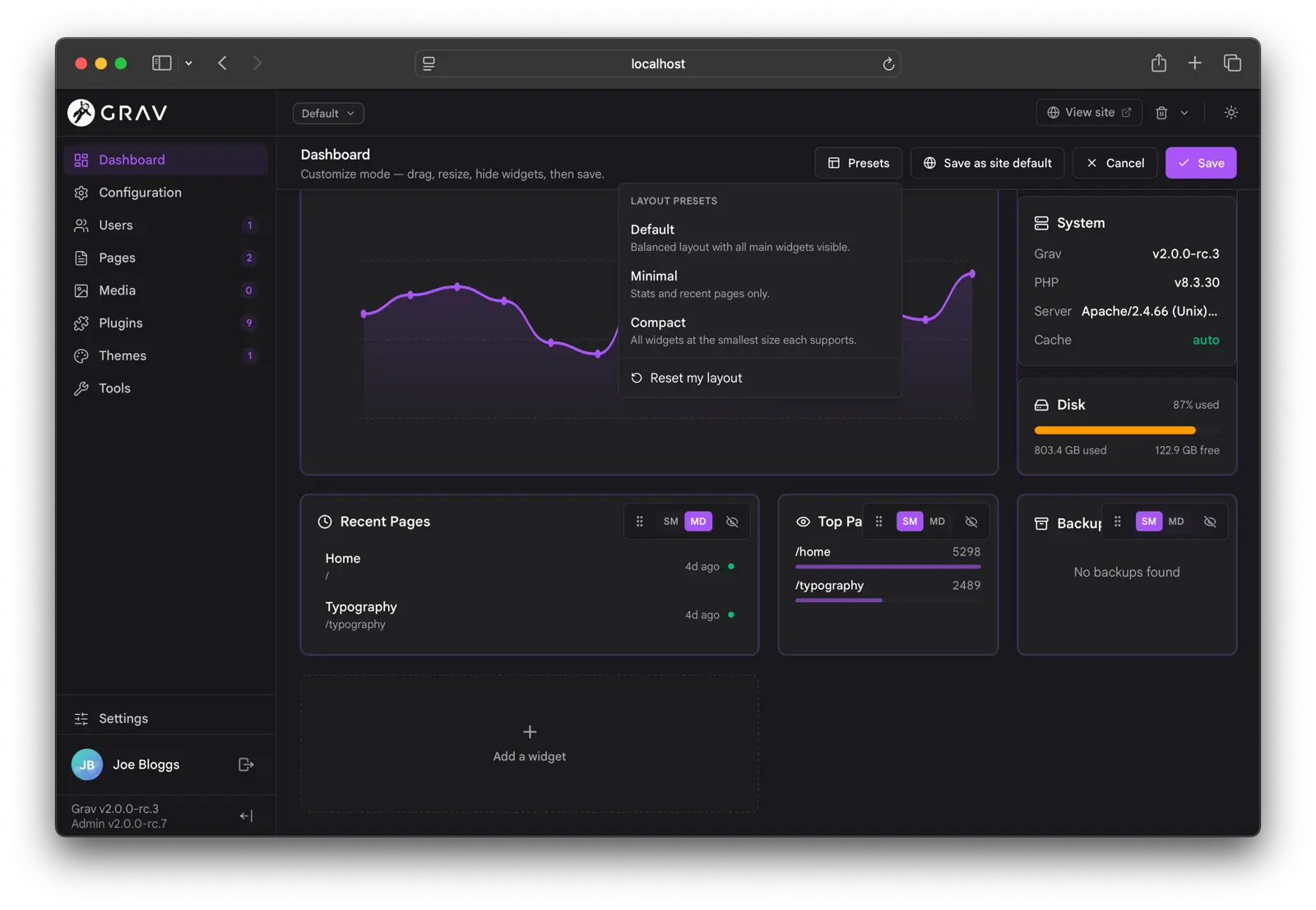
The grid uses a 4-column responsive layout. Widget sizes are horizontal-only (column counts), so a smaller widget hugs its content height instead of being padded out to fill a row. The widgets in any row align cleanly to the tallest of the lot, and a new xl size joins xs / sm / md / lg for widgets that want to take the full width.
A few of the widgets worth calling out:
- Updates is now front-and-center. A prominent purple Grav-core callout (
v{current} → v{available}with a filled-purple Upgrade Grav button) sits above an amber package panel with per-row version chips and a filled-amber Update All button. Different colors for different kinds of updates so you can read it in a glance. - Notifications uses a clean v2 schema with structured payloads, so promo notifications render as gradient cards at the top of the widget (with their own accent color), and info/notice/warning items render as a tidy row with an icon, optional title, markdown-rendered message, and a relative date.
- System Health keeps tabs on PHP and Grav versions, available updates, scheduler status, and cache state.
- Page Views, Top Pages, Recent Pages, and Backups round out the standard set.
Plugins can contribute their own widgets through the API's onApiDashboardWidgets event with zero client-side changes; they show up in the picker and the size selector automatically. Same goes for floating widgets (the FAB stack in the corner of every page) and context panels (slide-in panels triggered from editor toolbars).
Pages
The pages view is where the rebuild paid off the most. Classic admin had a single tree view, and a lot of the workflow assumptions were baked into it. Admin Next ships three first-class views: Tree, List, and Columns (Miller).
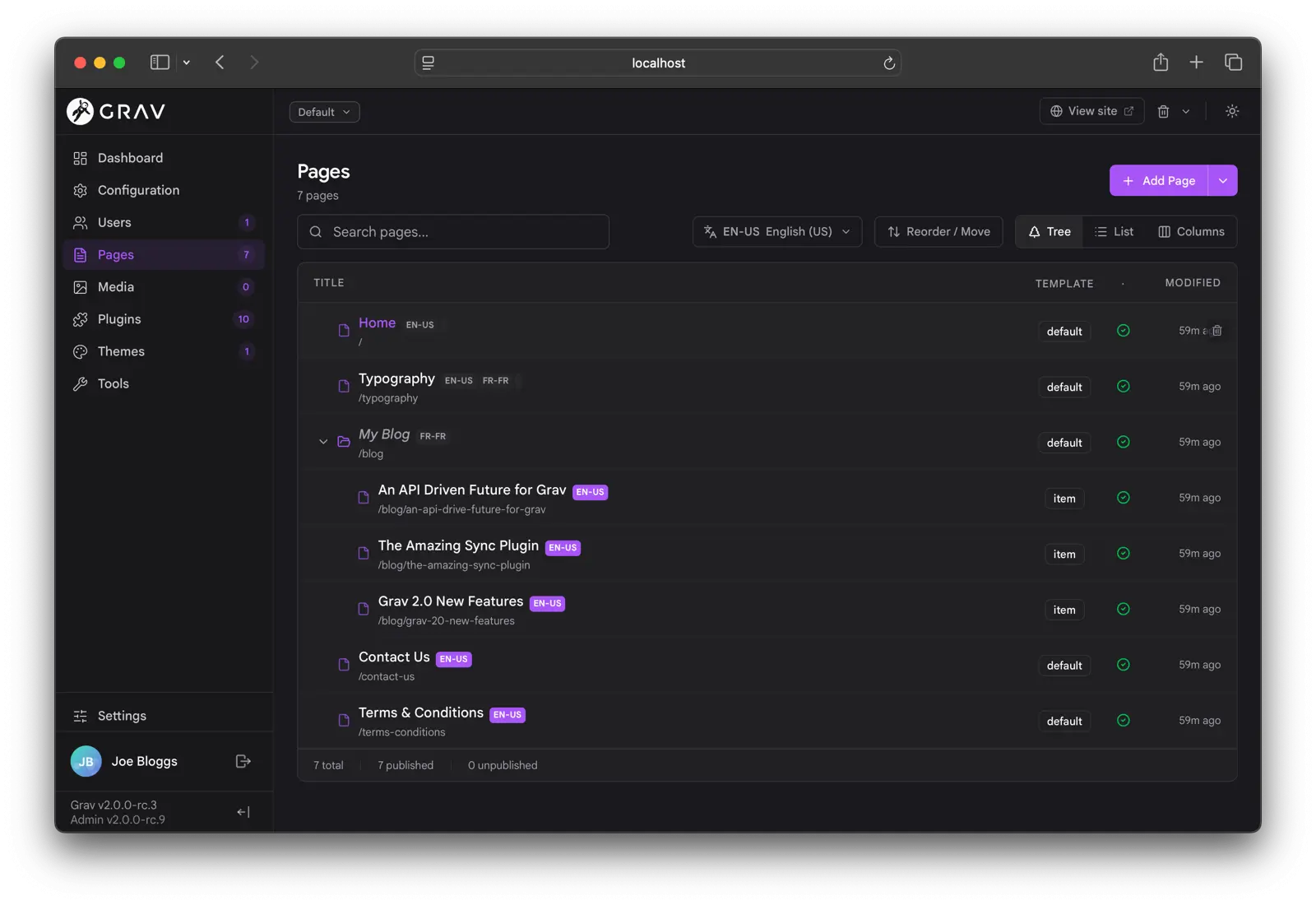
The toolbar across the top is shared across all three views: a segmented view-mode picker, a search input that performs full-site search via the API (debounced, capped at 500 results), a language picker for multi-language sites, a reorder toggle, and the Add Page button on the right.
The multi-language support has received the most upgrades in the Admin Next version. It's easier than ever to see what language you are in, you can easily save as another supported language, and get a status in the right sidebar of where things stand. You can also re-sync from the default language if it's simpler to just re-translate after changes.
The Add Page button is another of the things that carried over from classic admin with care. It's a three-way split: the main button still adds a regular page, the chevron opens a menu with Add Folder (a routing or grouping folder with no .md file) and Add Module (a modular sub-page; the folder name is automatically prefixed with _ per Grav's modular convention, and the template picker shows only modular templates). Each variant has its own appropriately slimmed-down form.
A few things worth flagging across the three views:
- Page visibility is communicated through a two-tone icon: visible pages use the accent color, non-visible pages drop to muted grey. Titles stay at full contrast so they're always readable.
- Drafts carry an amber
Draftpill alongside the title. - Translation badges sit inline next to the title (EN, FR, DE) and highlight the active language. Implicit defaults (a bare
default.mdwith no language-suffixed sibling) render normally with a muted default-language badge; only genuinely untranslated pages show italic + muted. - Symlink indicators appear on plugins, themes, and pages installed via symlink.
- Background refreshes are silent. When another tab saves a page, the affected row updates in place without flipping a skeleton or animating counters back from zero. The dashboard polls every 60 seconds without re-animating; the pages views silently refetch only the affected parent in the tree, the current page of results in the list view, or the relevant column in Miller.
The Columns view in particular is something I wanted to continue to feature as it's my preferred finder view:
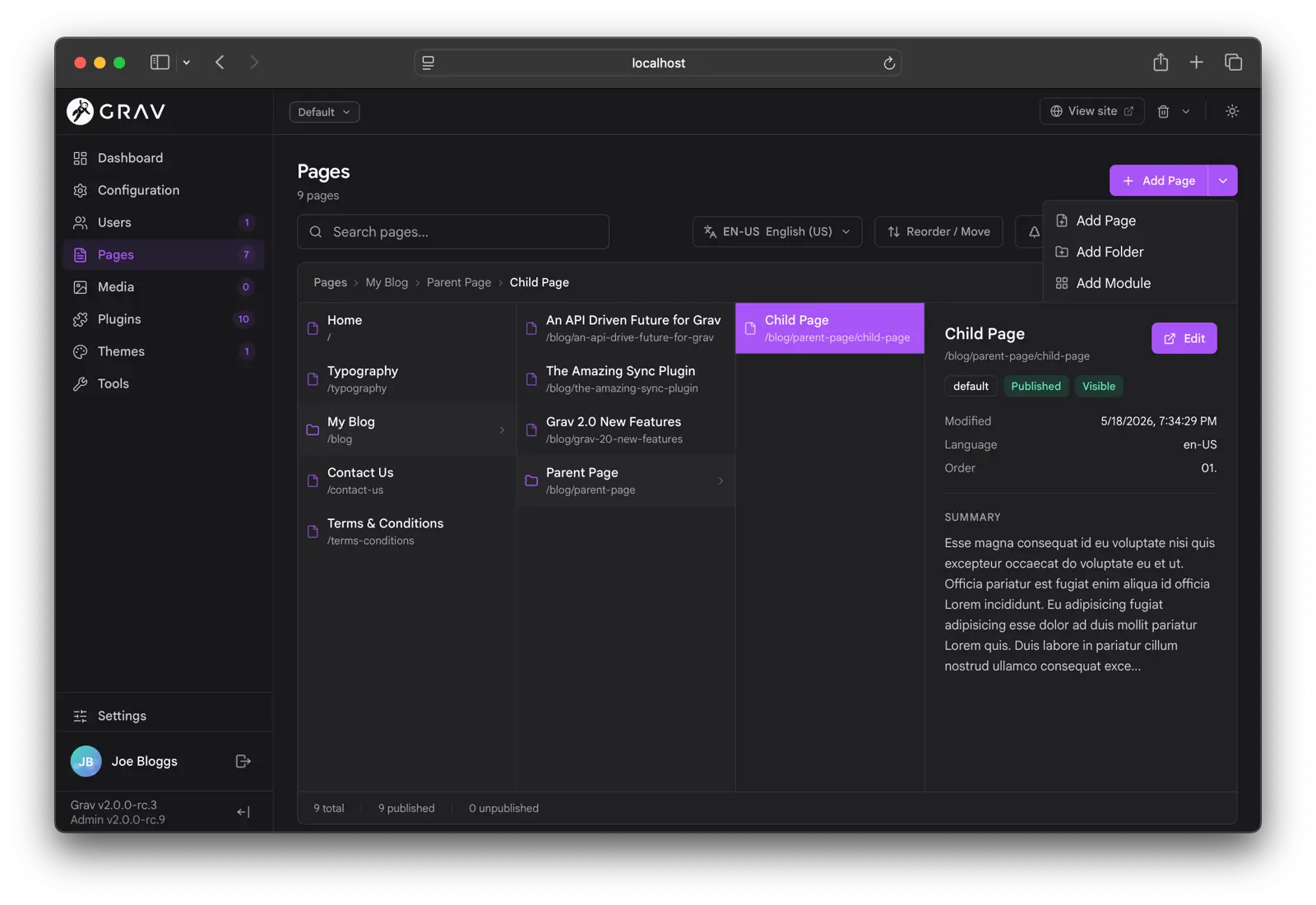
Single-tap on a row opens the detail on narrow viewports; on wider screens you get an inline preview pane on the right. The active column is highlighted, the selection trail is preserved as you drill in and out, and saving a page elsewhere refetches only the affected column instead of resetting the trail.
The Page Editor
The page editor is the heart of the admin, and it got a serious refresh.
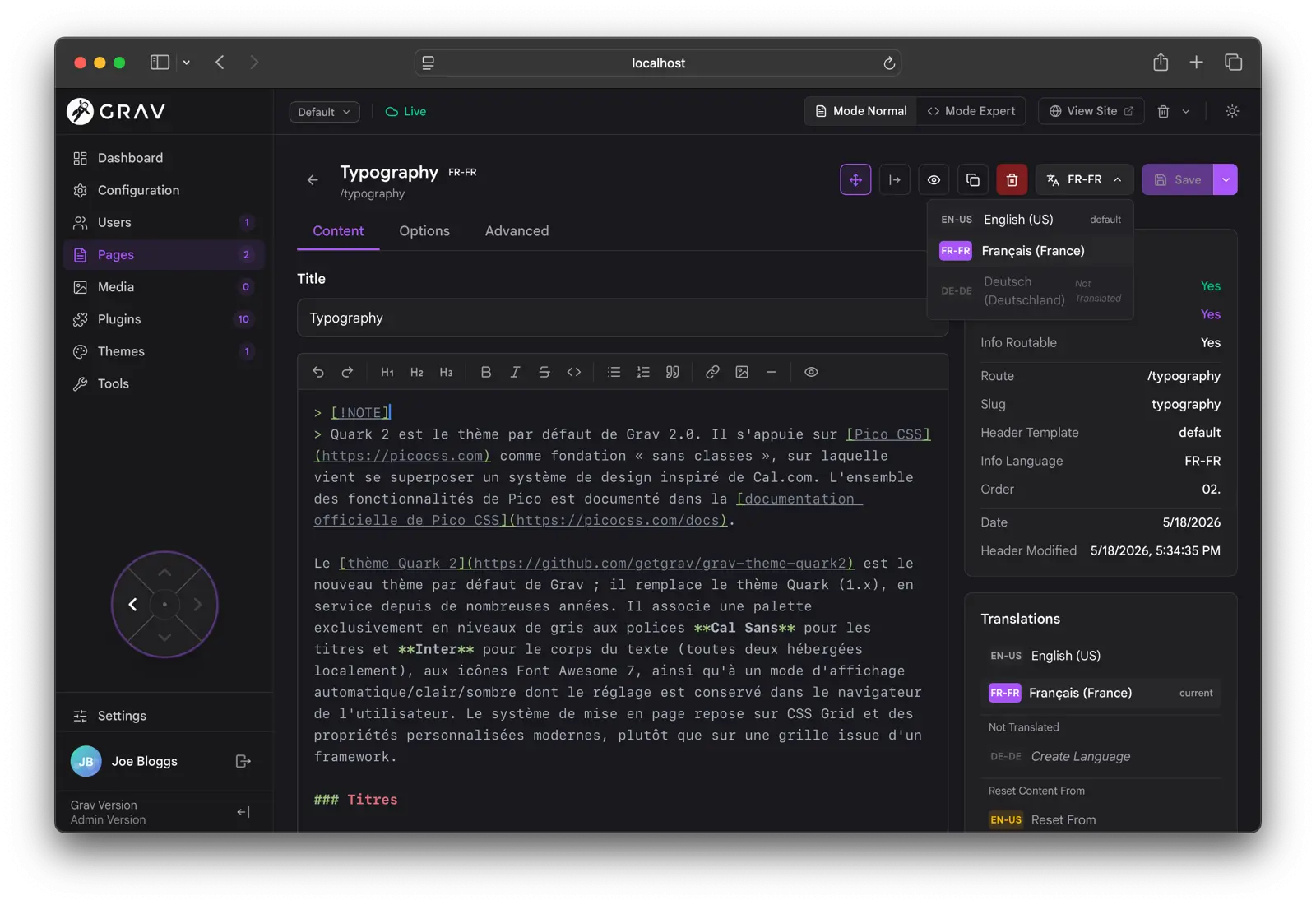
A few of the headline changes:
- The Normal/Expert segmented toggle (between blueprint-driven form and raw frontmatter editing) lives in the global topbar now, next to View Site, where the other top-of-window editing chrome lives.
- Presence avatars for the page sit in the topbar too. Click them to see who else is editing the page right now.
- The right rail (Page Info + Translations + Page Media) is collapsible. Toggle it from the per-page action bar and the form fills the full content width. State persists per-browser.
- The Page Navigator d-pad is a small floating control that jumps to the parent, the previous sibling, the next sibling, or the first child. It's the keyboard-friendly way to walk a tree without going back to the list.
- The Copy page action is back, alongside Save, Preview, Delete, and a per-language Save-as split.
The right side has the form, rendered straight from the page's blueprint. Every standard field type (text, textarea, toggle, select, list, array, file, media, color picker, date picker, code editor, markdown editor) is implemented as a native Svelte component with full keyboard support, ARIA hooks, and live validation against the blueprint's validate: block. Custom field types from plugins load on demand as web components (covered in the developer guide post).
Real-Time Collaborative Editing
The page editor supports real-time collaborative editing, opt-in via Settings → Editing → Real-time Collaboration. Multiple users can edit the same page at the same time and see each other's changes character-by-character, with named cursors in the content editor and live presence avatars in the topbar.

Under the hood: the whole blueprint is mirrored into a shared Yjs document, not just the markdown body. Long-form text fields use Y.Text for character-level CRDT, toggles and selects use last-write-wins on the enclosing Y.Map, and list/array fields CRDT-merge concurrent additions instead of clobbering. The transport is short-polling by default, but if you install the sync-mercure plugin, you get full Mercure Server-Sent Events (SSE) for sub-50ms updates.
A nice side effect: list fields like taxonomies and tags genuinely merge concurrent additions now. Two users adding tags to the same page each see their additions land cleanly instead of whichever-saved-last winning.
Configuration
The configuration page covers System / Site / Media / Security / Info / Plugins / Themes, with one big improvement over classic admin: it has a single shared filter input that searches across every visible panel and tab, expanding sections that contain matches and highlighting the matched substring with a visible highlight.

A couple of things you might want to know about:
- Twig in Content is a new security panel that's the master gate for editor-authored Twig in page content. It exposes the global toggle, the editor-permission toggle, and the
configaccess toggle in one place, so you can think about it as one decision instead of three. - The Info scope is now filterable too, so PHP settings and module status can be searched the same way as system or site config.
- Blueprint help and section bodies render HTML. Inline
<code>,<strong>, and the like work the way they always did in classic admin. The trust model is the same: blueprint YAML is server-controlled, not user-submitted. - True override-only saves are now standard in Admin2 which means when saving a configuration file, or even a plugin configuration, only the non-default override values are actually saved. No more copies of everything. This ensures you can tell what has actually changed from the default values.
Plugins, Themes, Users
The plugin and theme list pages share a layout: a filterable list on the left, a preview pane on the right (on wider screens), and a top toolbar with batch actions like Update All. Single-tap a row to open the detail page on narrower screens; click once to preview and click again to open on wider ones.

The update story got a lot of attention. Update All shows failure reasons inline (Grav too old, PHP too old, conflicting plugin version) instead of just a list of slugs. Installing a plugin pulls in missing blueprint dependencies automatically, with each dependency announced via its own toast. Confirmation modals gate every update, upgrade, and uninstall action.
User management is similarly straightforward. List of users on the left, detail on the right, with a Permissions section that lays out the full ACL tree as a recursive tri-state picker (Allowed / Denied / Not-set). Users with manager permissions see everyone; users without api.users.read can still self-edit, with sensitive fields stripped from the form.

A couple of details worth knowing:
- The State field (Enabled / Disabled) is exposed in the form. Grav's core
account.yamlblueprint never had one, so neither admin lacked a way to disable a user without hand-editing YAML. Admin Next injects it into the blueprint at request time, gated to managers. - The password fields ship with a live strength meter and a requirements hint button. The rules come from
system.pwd_regex(or the newsystem.pwd_ruleslist of labeled rules) so what the user sees in the meter is exactly what the server will enforce on submit. - 2FA enrollment is built in. Click Enable 2FA, scan the QR with an authenticator app, type in the six-digit code to confirm. Disable from the same control. Recovery codes are issued at setup and re-issuable.
Settings, Personalization, Site Defaults
Settings is the personal-preferences home. Every user gets:
- Appearance: color mode (light / dark / auto), accent color (eight presets plus a Custom hue/saturation picker), font (Google Sans default, Inter, Public Sans, Nunito Sans, Jost), font size (Small / Normal / Large / X-Large).
- Pages defaults: default view mode and items per page.
- Editor: markdown editor flavor, sync behavior, content editor.
- Admin language: populated from the actual installed translations under
user/plugins/admin2/languages/*.yaml, each shown in its native name.

The personalization persists per-user via the API (/admin-next/preferences/user), so logging in on another browser or device picks up your customizations automatically. localStorage is still used as a render-cache so the first paint matches your last-known accent without flashing the default; legacy localStorage preferences migrate over on first boot after upgrade. Changes propagate across open tabs on the next focus, or via a 30-second background poll, and the poll doubles as a session keep-alive so idle tabs don't silently drift logged-out.
Super-admins get a separate Site Defaults section:

This is where you set:
- Site branding (light/dark logo and brand text). Uploads go to
user://media/admin-next/and replace the built-in Grav logo for every admin user. - Default appearance / pages / language / editor preferences that apply as the baseline for every user. Users can still override their own.
- Site-wide editing behavior (auto-save, real-time collaboration). These were per-user preferences in an earlier build; experience showed they make more sense as one decision per site.
- Menubar links that appear in the top toolbar for every user.
Languages and Direction
This is the area I'm most excited about right now, because it's the part of the admin that's most directly about welcoming a wider community.
Admin Next has a full ICU MessageFormat translation layer, with placeholders, plurals, select cases, and CLDR-aware plural categories applied per-locale automatically. Every translation key is looked up in two places, in order: ICU.<key> (passed through ICU MessageFormat) and <key> (returned raw). Plugins can ship a single language file that works on both Grav 1 / classic admin (which reads only the legacy block) and Grav 2 / Admin Next (which prefers the ICU: block when present).
The admin ships with languages/en.yaml covering every previously-hardcoded toast message, button title, aria-label, placeholder, and inline label across the whole admin: about 1,470 strings. Two more full translations land in this release:
- Arabic (
ar.yaml) with all six CLDR plural categories (zero / one / two / few / many / other). - Hebrew (
he.yaml) with all four (one / two / many / other).
Picking either of those (or any other locale Grav core flags as RTL: Persian, Urdu, etc.) flips the entire admin to right-to-left:

The RTL pass is more than just a CSS direction flip. The sidebar slides in from the right edge on mobile and docks on the right at desktop; the context panel slides in from the left with mirrored @keyframes; the floating widget FAB stack docks on the bottom-left; toast notifications originate from the inline-end corner; the segmented-toggle thumb glides in the correct direction; the directional icons (pagination chevrons, "back" arrows, drill-in chevrons, calendar prev/next, tree expand) flip with the language; and the Page Navigator d-pad swaps sibling semantics so a "next" arrow always points the way reading flows. Code editors stay LTR because code itself doesn't reverse.
The whole admin is built on Tailwind v4 logical utilities (ms-* / me-* / ps-* / pe-* / text-start / text-end / border-s / border-e) so direction-awareness composes by construction. The codemod that did the bulk of the migration is committed at scripts/rtl-pairs.mjs for plugin authors to apply the same transform to their own bundles, and the RTL contract for plugin web components is documented at docs/RTL.md (mirrored into the admin-next integration skill for AI-assisted development).
For plugin authors: the window.__GRAV_I18N global is a read-only frozen interface (t, has, locale, dir, subscribe) that any plugin web component can call into. Subscribe to language changes and re-render; read the active direction to flip your own custom layouts. Pro plugins are still English-only at the moment; their authors can ship their own translations against the same contract.
If you've ever wondered whether your site could run an Arabic-speaking editorial team or a Hebrew-language documentation site, the answer is now "yes, on day one."
Tools
The Tools section gathers admin utilities that don't fit elsewhere: the Logs viewer, the Reports page, the Scheduler view, the Cache controls, and the Backups manager.

The Logs viewer is particularly nice. The file selector dropdown lists grav.log, email.log, scheduler.log, and any log file contributed by a plugin via the new onApiLogFiles event. On default installs where only the core logs exist, the selector is hidden, so the page stays clean.
The Reports page is plugin-extensible (covered in the API integration post). Built-in reports cover security configuration and YAML lint; plugins can contribute their own diagnostic cards with either pre-rendered markdown or a custom web component for richer rendering.
A Unified Plugin Experience
One of the things classic admin never quite cracked was a clean story for complex plugins. Plugins that did more than expose a configuration form (search managers, SEO tools, translation workflows, AI assistants, revision history) all ended up reinventing their own conventions on top of admin: bespoke Twig pages with their own navigation, their own modal patterns, their own field UIs that didn't quite match the rest of the chrome. The result was that every plugin you installed made the admin feel a little less like one product.
Admin Next is built from day one to do this properly. The same plumbing that powers the core admin (the API, the blueprint system, the web-component contract, the sidebar/menubar/widget/panel/report registries) is the plumbing every plugin uses. When a plugin ships its own admin section, it appears as a first-class entry in the sidebar, opens with the same chrome as Pages or Users, renders forms with the same field components, and respects the same permissions, the same dark mode, the same accent color, and the same language. It looks and behaves like part of admin because architecturally it is.
The integration points cover everything a complex plugin tends to need:
- Full plugin pages with their own sidebar entry, in either blueprint mode (you ship a YAML form, admin renders it) or component mode (you ship a web component, admin mounts it). Many plugins combine both: a blueprint-driven settings form plus a custom dashboard component below it.
- Custom blueprint field types as web components, loaded on demand when a blueprint uses them.
- Settings panels for configuration that belongs alongside system settings rather than in its own sidebar entry.
- Menubar items for quick one-click actions in the top toolbar ("warm cache", "purge CDN", "publish").
- Floating widgets for persistent UI that lives across page navigation (AI chat assistants, live notifications, helpers).
- Context panels that slide in from the edge of editors for editor-scoped tooling (revision history, SEO analysis, link checking).
- Custom reports that contribute diagnostic cards to the Reports page.
- Custom dashboard widgets that show up in the dashboard grid and the customize-mode picker.
All of them use the same recipe: a small PHP event hook in the plugin, an optional JavaScript web component under admin-next/{kind}/{slug}.js, and any custom REST endpoints the UI needs. No special build step, no toolchain, no admin-specific framework to learn beyond standard web platform APIs.

The plugins making the most of this already include premium tooling like SEO Magic (a full management dashboard with custom dashboard widgets and context panels for per-page analysis), AI Pro and AI Translate (floating widgets and panels for content assistance), Editor Pro (the rich-text editor that replaces the built-in markdown editor across the admin, including collaborative editing peers), Yeti Search Pro (a dedicated search management interface), and Revisions Pro (a context panel showing per-page revision history inside the page editor). On the free side, License Manager, Codesh, and Git-Sync ship the same patterns and are openly readable on GitHub if you want to see how it's done in real plugin code.
The takeaway for site owners is simple: when you install a plugin that's been built for Admin Next, you don't get a separate admin within an admin. You get more of the admin you already know, with the new functionality folded in alongside everything else.
How It Stays Fast
A few of the engineering choices behind the speed, in case you want to know:
- Static assets are served directly by the webserver. The SPA's ~260 JS chunks, CSS, and fonts all load straight from disk via Apache/LiteSpeed/Caddy/Nginx, the same way classic admin's assets always did. PHP only handles the SPA shell HTML and a once-a-minute
_app/version.jsonpoll. One shared plugin install serves any number of sites with different routes or subfolder rootUrls. - Optimistic concurrency via
ETag. Every mutation respects theIf-Matchheader and any 409 shows a "modified elsewhere" toast that gives you the choice of overwriting or reloading. Compression-suffixed ETags (-gzip,-br) are normalized so reverse proxies don't spuriously trigger conflicts. - Session-aware HTTP fallback. On hosts that block
PATCH/PUT/DELETEat the edge, the client transparently falls back toPOST + X-HTTP-Method-Overrideafter the first 405, with the fallback cached per session. - Mercure SSE keep-alive with proactive JWT refresh. Long-running tabs renew their subscriber tokens at ~80% of TTL so the EventSource never wakes up dead.
X-API-Tokenas the default JWT transport. Skips the FastCGIAuthorization-header-stripping problem that breaks MAMP installs and a chunk of shared hosting.
The end result is an admin that feels fast on a fresh deploy, and stays fast when you're editing a 10,000-page site with three other editors in the page next to you.
For Plugin and Theme Developers
If you maintain a plugin or theme, the previous three posts in the developer series have you covered:
- Grav 2.0 for Plugin Developers: Overview: the high-level "what does this mean for my plugin" answer.
- Compatibility Flags: the five-minute change every plugin should make.
- API Integration for Plugins: adding custom endpoints.
- Admin Next Custom Form Fields: building web components for custom blueprint field types.
More posts are coming on custom plugin pages (full-page integrations with their own sidebar entry, blueprint mode or component mode), panels and menubar items (the lighter-weight integration points), and custom reports. The short version is that every Admin Next integration point follows the same pattern: a small PHP event hook in your plugin, an optional web component under admin-next/{kind}/{slug}.js, and you ship.
Most plugins won't need any of that. If your plugin has a blueprints.yaml and no custom UI, it works in Admin Next today, full stop.
How to Try It
Admin Next ships as the default admin in Grav 2.0. Stand up a fresh Grav 2.0 install on PHP 8.3+, complete the first-user wizard, and you're in. If you're on Grav 1.7, the migration post walks through the side-by-side staged install: a clean 2.0 site is created next to your existing one, the migration wizard imports your content and configuration, and you promote it when you're happy.
The classic admin plugin remains available for sites that need it and isn't going anywhere on the 1.7 line, but Admin Next is the path forward. Everything new from here lands in Admin Next first.
Quick Links and Help
- The 2.0 release post: Introducing Grav 2.0.
- The API foundation: The Grav API.
- AI integration: The MCP Server.
- The migration walkthrough: Migrating to Grav 2.0.
- The developer series so far: Plugin Developers Overview, Compatibility Flags, API Integration, Custom Form Fields.
- The Learn site: learn.getgrav.org.
- Discord: chat.getgrav.org for any "is this working as expected?" questions.
— Andy
Important
Next in the series: Migrating to Grav 2.0