
Helios Documentation
Learn how to use the full power of Helios
Found an issue or a problem that you can't find an answer for? Create an issue in our Premium Issue Tracker.
Before you start
Before you can install a Premium Plugin, you are required to have the License Manager plugin installed. It is a free plugin available in GPM and can be installed like any other through the Plugin section of the admin plugin, or via command line.
$ bin/gpm install license-managerAfter installation you should install your product license. This was sent to you via email when you purchased the product. If you have lost your license, you can retrieve it from the new License Portal. Ensure you use the same email address you used to purchase the product.
Installing a License
Once you have the License Manager plugin installed, you can install your license. You can do this in two ways:
Via Admin Plugin
- Navigate to the License Manager section of the admin plugin.
- Click the Install License button.
- Enter your license key and click Install.
- You should see a success message and the license will be installed.
Via Command Line
You can also install your license via command line. To do this, you need to run the following command:
$ bin/plugin license-manager add -s <product-slug> -l <license-key>Installation
First ensure you are running the latest version of Grav 1.7 (-f forces a refresh of the GPM index).
$ bin/gpm selfupgrade -fThe Helios theme has several dependencies that enhance its functionality. Install the theme via GPM, and confirm when prompted to install the dependencies:
$ bin/gpm install heliosYou can also install the theme via the Themes section in the admin plugin.
Required & Recommended Plugins
Helios works best with the following plugins:
| Plugin | Required | Description |
|---|---|---|
| SimpleSearch | Yes | Powers the basic search functionality with keyboard shortcuts |
| SVG Icons | Yes | Required for theme UI elements and icon support throughout |
| Github Markdown Alerts | Recommended | Required for callout support |
| Shortcode Core | Recommended | Enables shortcode syntax for callouts, tabs, and other components |
| Codesh | Recommended | Server-side syntax highlighting with 200+ languages and 70+ VS Code themes |
| Page TOC | Recommended | Generates table of contents from headings |
| API Doc Import | Optional | Import OpenAPI/Swagger specs as API documentation pages |
Install the required and recommended plugins via GPM:
$ bin/gpm install simplesearch svg-icons github-markdown-alerts shortcode-core codesh page-tocFor API documentation features, also install:
$ bin/gpm install api-doc-importSkeleton Packages
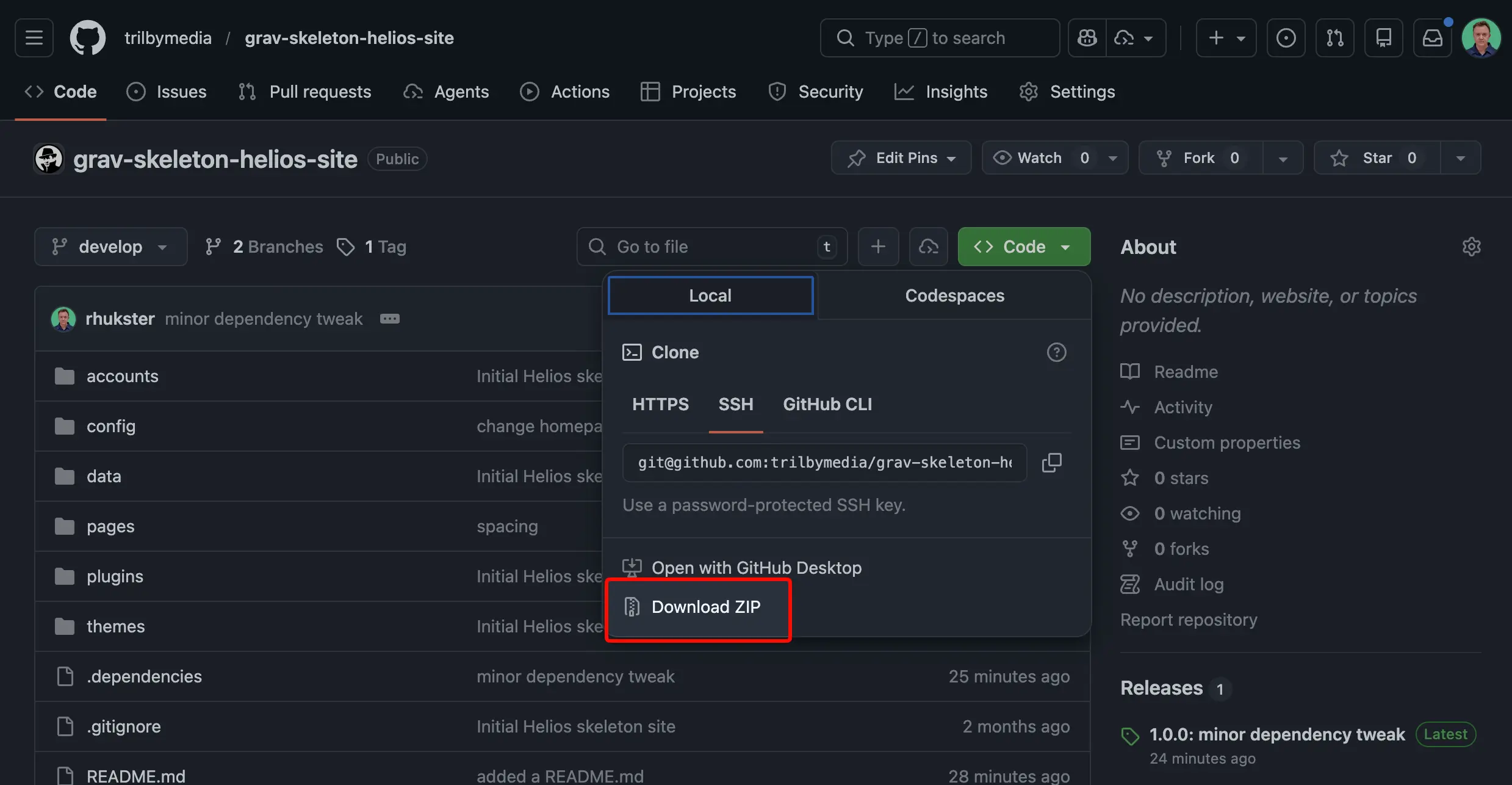
Looking for Helios demo skeleton packages to get you started? You can download them directly from GitHub and follow the instructions in the README.md file of the repository.
The quickest way to download the files is to simply click the green Code button then click the Download ZIP.
Configuration
Helios is highly configurable through the Admin panel or by editing user/config/themes/helios.yaml. There are many options organized into logical sections.
Theme Level Configuration
Appearance Settings
Helios comes with full support for both light and dark themes with automatic system preference detection.
-
Theme → Configure Helios to use the current
Systemsetting (follows your OS preference),Light, orDark. -
User Selector → Enables or disables the theme toggle button in the header.
-
Remember Selection → When enabled, uses localStorage to remember the user's theme preference between visits.
-
Cookie Mode → Use cookies instead of localStorage for theme preference storage.
Color Customization
Helios exposes CSS color variables that you can customize to match your brand. Configure colors in your theme settings:
colors:
  # Light Mode
  primary: '#3B82F6'           # Primary brand color (light mode)
  primary_hover: '#2563EB'     # Hover state for primary color
  primary_text: '#FFFFFF'      # Text color on primary backgrounds (e.g., buttons)
  accent: '#8B5CF6'            # Accent color for highlights
  # Dark Mode
  primary_dark: '#60A5FA'      # Primary color for dark mode
  primary_dark_hover: '#93C5FD'  # Hover state in dark mode
  primary_dark_text: '#111827' # Text on primary backgrounds in dark mode
  accent_dark: '#A78BFA'       # Accent color in dark mode
The primary_text and primary_dark_text settings control the text color on primary-colored backgrounds (such as filled buttons). Adjust these when your primary color requires different contrast -- use light text on dark primary colors and dark text on light primary colors.
These map to CSS variables that you can also override directly in custom CSS:
:root {
    --helios-color-primary: #3B82F6;
    --helios-color-primary-hover: #2563EB;
    --helios-color-primary-text: #FFFFFF;
    --helios-color-primary-dark: #60A5FA;
    --helios-color-primary-dark-hover: #93C5FD;
    --helios-color-primary-dark-text: #111827;
}
Font Configuration
Configure body and code fonts:
fonts:
  body: inter           # inter, open-sans, nunito-sans, work-sans, public-sans, quicksand
  code: jetbrains-mono  # Monospace font for code blocks
Available font options include Inter, Open Sans, Nunito Sans, Work Sans, Public Sans, and Quicksand.
Font Sizing
Helios supports three font size presets:
| Size | Description |
|---|---|
small |
Compact sizing for dense documentation |
medium |
Default, balanced sizing |
large |
Larger text for improved readability |
Logo & Branding
logo:
  image: 'user://assets/logo.svg'  # Path to logo image (SVG recommended)
  text: 'My Docs'                  # Fallback text if no image
  height: h-8                      # Tailwind height class

custom_favicon: 'user://assets/favicon.png'  # Custom favicon
Navigation Settings
Configure the sidebar, content area, and table of contents:
navigation:
  sidebar_width: 280    # Sidebar width in pixels
  content_width: 768    # Max content width in pixels
  toc_width: 240        # TOC width in pixels
  toc_position: right   # right, left, or hidden
  toc_start: 2          # Start heading level (1=h1, 2=h2)
  toc_depth: 3          # Number of heading levels to include
  breadcrumbs: true     # Show breadcrumb navigation
  prev_next: true       # Show prev/next links at bottom
  scroll_spy: true      # Highlight current section in TOC
Sidebar Navigation
The sidebar automatically reflects your page structure. Pages are ordered by their folder prefix:
user/pages/
├── 01.getting-started/    # Shows first
├── 02.guides/             # Shows second
└── 03.api/                # Shows third
Controlling Page Visibility
Hide a page from navigation using frontmatter:
---
title: Hidden Page
visible: false
---
Or use routable: false to make it non-navigable while still visible in the sidebar.
Custom Menu Labels
Override the title shown in navigation with the menu frontmatter:
---
title: Getting Started with Helios Documentation Theme
menu: Getting Started
---
Header Menu
Add navigation links to the header:
header:
  menu:
    - route: '/changelog'
      label: 'Changelog'
    - route: 'https://github.com/your/repo'
      label: 'GitHub'
      external: true
Search Configuration
Helios integrates with SimpleSearch by default, with support for keyboard shortcuts:
search:
  enabled: true
  provider: simplesearch    # simplesearch or yetisearch
  keyboard_shortcut: true   # Enable Cmd+K / Ctrl+K
  placeholder: 'Search documentation...'
  min_chars: 2              # Minimum characters before searching
For larger documentation sites, upgrade to YetiSearch Pro for advanced fuzzy matching:
search:
  provider: yetisearch
Versioning Configuration
Enable folder-based documentation versioning:
versioning:
  enabled: true
  mode: explicit           # explicit (all prefixed) or implicit (current unprefixed)
  auto_detect: true        # Auto-detect version folders
  root: ''                 # Root folder containing versions (empty = site root)
  default_version: v3      # Default/latest version
  current_version: v3      # Current version for implicit mode
  version_pattern: '/^v?\d+(\.\d+)*$/'  # Regex for version detection
  show_badge: true         # Show version badge in header
  show_dropdown: true      # Show version dropdown in sidebar
  labels:                  # Custom labels
    v1: 'v1 (Legacy)'
    v2: 'v2 (Stable)'
    v3: 'v3 (Latest)'
Folder Structure
Organize your documentation by version:
user/pages/
├── v1/
│   ├── getting-started/
│   ├── guides/
│   └── api/
├── v2/
│   ├── getting-started/
│   ├── guides/
│   └── api/
└── v3/
    ├── getting-started/
    ├── guides/
    └── api/
Version Switcher
When versioning is enabled, a dropdown appears in the sidebar allowing users to switch between versions. Helios attempts to preserve the URL path when switching - if you're on /v2/guides/theming, switching to v3 takes you to /v3/guides/theming if that page exists.
GitHub Integration
Link your documentation to a GitHub repository:
github:
  enabled: true
  repo: 'your-org/your-repo'
  branch: main
  edit_link: true           # Show "Edit this page" links
  edit_text: 'Edit this page'
HTMX Navigation (Experimental)
Enable SPA-like navigation that loads content via XHR:
htmx:
  enabled: true
When enabled, navigation between pages happens without full page reloads, providing a smoother user experience.
Full Configuration Example
Here's a complete configuration file:
enabled: true

appearance:
  theme: system
  selector: true
  storage: true

colors:
  primary: '#3B82F6'
  primary_hover: '#2563EB'
  primary_text: '#FFFFFF'
  accent: '#8B5CF6'
  primary_dark: '#60A5FA'
  primary_dark_hover: '#93C5FD'
  primary_dark_text: '#111827'
  accent_dark: '#A78BFA'

fonts:
  body: inter
  code: jetbrains-mono

logo:
  text: 'My Documentation'
  height: h-8

header:
  menu:
    - route: '/changelog'
      label: 'Changelog'

navigation:
  sidebar_width: 280
  content_width: 768
  toc_position: right
  toc_depth: 3
  breadcrumbs: true
  prev_next: true
  scroll_spy: true

search:
  enabled: true
  provider: simplesearch
  keyboard_shortcut: true

versioning:
  enabled: false

github:
  enabled: false

api:
  enabled: true

htmx:
  enabled: false
Components
Helios includes a rich set of components designed for technical documentation. Most components use shortcode syntax provided by the Shortcode Core plugin.
Callouts
Callouts (alerts/admonitions) use GitHub-flavored markdown syntax:
> [!NOTE]
> Useful information that users should know.

> [!TIP]
> Helpful advice for doing things better.

> [!IMPORTANT]
> Key information users need to know.

> [!WARNING]
> Urgent info that needs immediate attention.

> [!CAUTION]
> Advises about risks or negative outcomes.
Callouts support full markdown inside, including formatting, lists, and code blocks.
Code Blocks
Helios uses the Codesh plugin for server-side syntax highlighting. Codesh provides:
- 200+ languages via TextMate grammars
- 70+ VS Code themes including GitHub, Dracula, Nord, One Dark Pro
- Line numbers with custom starting positions
- Line highlighting and focus mode
- Diff visualization for showing changes
- Code groups with synchronized tabs
Basic Syntax Highlighting
Use standard markdown code fences or the [codesh] shortcode:
```javascript
function greet(name) {
    return `Hello, ${name}!`;
}
#### Line Highlighting

Highlight specific lines to draw attention:

```text
[codesh lang="javascript" line-numbers="true" highlight="2,4-6"]
function processData(data) {
    const filtered = data.filter(item => item.active);

    const mapped = filtered.map(item => ({
        id: item.id,
        name: item.name.toUpperCase()
    }));

    return mapped;
}
[/codesh]
Code Groups
Display multiple code examples in a tabbed interface:
[codesh-group]
[codesh lang="javascript" title="JavaScript"]
const greeting = 'Hello, World!';
[/codesh]
[codesh lang="python" title="Python"]
greeting = "Hello, World!"
[/codesh]
[codesh lang="php" title="PHP"]
$greeting = "Hello, World!";
[/codesh]
[/codesh-group]
Use the sync attribute to synchronize tab selection across multiple code groups on the page.
Tabs
Tabs organize content into switchable panels:
[doc-tabs]
[doc-tab title="Preview"]
This is the preview content.
[/doc-tab]
[doc-tab title="Code"]
This is the code content.
[/doc-tab]
[/doc-tabs]
Add sync-labels=true to synchronize tabs with matching labels across the page:
[doc-tabs sync-labels=true]
[doc-tab title="macOS"]
Instructions for macOS...
[/doc-tab]
[doc-tab title="Windows"]
Instructions for Windows...
[/doc-tab]
[doc-tab title="Linux"]
Instructions for Linux...
[/doc-tab]
[/doc-tabs]
Steps
Display numbered tutorial steps:
[doc-steps]
[doc-step title="Install dependencies"]
Run `npm install` to install all required packages.
[/doc-step]
[doc-step title="Configure settings"]
Edit `config.yaml` with your preferences.
[/doc-step]
[doc-step title="Start development"]
Run `npm run dev` to start the development server.
[/doc-step]
[/doc-steps]
Cards & Grids
Create card-based layouts:
[doc-card-grid cols=3]
[doc-card title="Getting Started" icon="tabler/rocket.svg"]
Quick introduction to get up and running.
[/doc-card]
[doc-card title="Configuration" icon="tabler/settings.svg"]
Detailed configuration options.
[/doc-card]
[doc-card title="API Reference" icon="tabler/code.svg"]
Complete API documentation.
[/doc-card]
[/doc-card-grid]
Buttons
Styled buttons for calls-to-action, navigation links, and interactive triggers:
[doc-button label="Get Started" link="/getting-started"]
[doc-button label="Learn More" link="/guides" style="bordered"]
[doc-button label="Cancel" link="#" color="plain"]
Buttons support several options:
- Styles →
default(filled),bordered(outline) - Colors →
default(primary),blue,green,yellow,red,purple,plain(neutral gray) - Sizes →
sm,default,lg,xl - Icons → Add left/right icons via
icon-leftandicon-right(e.g.,tabler/arrow-right.svg) - Links → Set
linkfor an<a>tag, or omit for a<button>element (useful for JS triggers) - New tab →
new-tab=trueopens the link in a new tab - Centering →
center=truewraps the button in a centered container - Data attributes →
data-attranddata-valfor JavaScript interactivity
The primary/default button color respects the primary_text and primary_dark_text color settings, ensuring proper contrast regardless of your chosen primary color.
Badges
Inline status pills for labels, tags, and indicators:
[doc-badge label="New"]
[doc-badge label="Stable" color="green"]
[doc-badge label="Deprecated" color="red" style="outline"]
[doc-badge label="Beta" color="purple" icon="tabler/flask.svg"]
Options include:
- Colors →
default(primary),blue,green,yellow,red,purple,plain - Styles →
filled(default),outline - Sizes →
default,sm - Icons → Optional icon before the label
Tooltips
Hover/focus tooltips for inline term definitions:
The [doc-tooltip tip="HyperText Markup Language"]HTML[/doc-tooltip] specification defines...

Use [doc-tooltip tip="Cascading Style Sheets" style="highlight"]CSS[/doc-tooltip] for styling.
Styles: underline (dashed underline, default), highlight (tinted background), plain (no decoration).
Link Cards
Display link preview cards for external resources or related pages:
[doc-link-card href="https://getgrav.org" title="Grav CMS" description="Modern open-source flat-file CMS" icon="tabler/brand-github.svg"]Options include:
- href → URL to link to (required)
- title → Card title (required)
- description → Short description text
- icon → Icon path (e.g.,
tabler/star.svg) - new-tab → Open in new tab (default:
true)
Details
Simple collapsible sections using the native HTML <details> element — lighter than the full accordion:
[doc-details title="Click to expand"]
Hidden content revealed on click.
[/doc-details]

[doc-details title="Open by default" open=true]
This section starts expanded.
[/doc-details]
Keyboard Keys
Styled keyboard keys for documenting shortcuts. Supports compound keys with + and Mac modifier symbols (⌘, ⌥, ⇧, ⌃):
Press [doc-kbd key="Ctrl+C"] to copy.

Mac: [doc-kbd key="⌘+S"] to save.

[doc-kbd key="Ctrl+Shift+P"] opens the command palette.
Copy Text
Inline copyable text with a one-click clipboard button. Works inside paragraphs, tables, lists — anywhere:
Install with [doc-copy text="composer require getgrav/grav-theme-helios"] and configure.

The config file is at [doc-copy text="user/config/system.yaml"].
Also supports container form: [doc-copy]some text[/doc-copy]
File Tree
Display directory structures with auto-detected icons:
[doc-file-tree]
user/themes/helios/
├── css/
│   ├── site.css
│   └── custom/
├── js/
│   └── main.js
├── templates/
│   ├── default.html.twig
│   └── partials/
└── helios.yaml
[/doc-file-tree]
Icons
Access 30,000+ icons from Tabler, Heroicons, Bootstrap, Lucide, and more through the SVG Icons plugin.
Use them in Twig templates:
{{ svg_icon('tabler/star.svg', 'w-6 h-6 text-yellow-500') }}Common icon sets included:
- Tabler - 5,000+ open source icons
- Heroicons - Beautiful hand-crafted SVG icons
- Lucide - Beautiful & consistent icon toolkit
- Bootstrap Icons - Official Bootstrap icon library
Images
Styled images with optional border, shadow, caption, and lightbox zoom:
[doc-image src="screenshot.png" alt="Screenshot" caption="Dashboard view" border=true shadow=true]

[doc-image src="diagram.png" alt="Architecture" lightbox=false width="400px"]
Options include:
- border → Add a subtle border around the image
- shadow → Add a drop shadow
- caption → Text caption below the image
- lightbox → Click-to-zoom overlay (default:
true) - width → Max width constraint (e.g.,
400pxor50%)
Videos
Responsive video embeds for YouTube, Vimeo, or local files:
[doc-video url="https://www.youtube.com/watch?v=dQw4w9WgXcQ" title="Demo Video"]

[doc-video src="demo.mp4" ratio="16:9" autoplay=true muted=true loop=true]
Options include:
- url → YouTube or Vimeo URL
- src → Local video file path
- ratio → Aspect ratio:
16:9(default),4:3,1:1,9:16 - autoplay, loop, muted → Playback controls for local videos
Theme Modification
Create a Custom Theme from Helios
It is strongly advised to create a new theme based on Helios if you want to make modifications to the Twig templates, CSS, etc. To create your new custom theme, install the devtools plugin:
bin/plugin devtools new-themeWhen prompted, select copy and choose Helios as the theme to copy. This creates a complete copy of Helios that you can modify freely while still being able to update the original Helios theme.
Modify the CSS
Helios is built on TailwindCSS 4, making it highly customizable through CSS variables and configuration.
Installing NPM to Compile CSS
Depending on your platform, installing NPM is different. Please follow the official NPM Installation Instructions. After installation:
cd user/themes/helios
npm install
Developing Custom CSS
For development with automatic recompilation:
npm run devFor a production build:
npm run prodLayout Customization
Adjust sidebar and TOC widths via CSS variables:
@theme {
    --spacing-sidebar: 300px;  /* Default is 280px */
    --spacing-toc: 260px;      /* Default is 240px */
}
Modify Twig Templates
Most modifications involve editing Twig templates in the templates/ folder. The template structure includes:
templates/
├── default.html.twig       # Base page template
├── doc.html.twig           # Documentation page template
├── chapter.html.twig       # Chapter/section template
├── api-endpoint.html.twig  # API documentation template
└── partials/
    ├── base.html.twig      # Base HTML structure
    ├── header.html.twig    # Header with logo and navigation
    ├── sidebar.html.twig   # Left sidebar navigation
    ├── toc.html.twig       # Table of contents
    ├── breadcrumbs.html.twig
    └── footer.html.twig
To override a template, copy it to your custom theme and modify as needed.
Using SVG Icons
Icons are available via the SVG Icons plugin. Use them in Twig templates:
{{ svg_icon('tabler/home.svg', 'w-5 h-5 stroke-current') }}Or in markdown via shortcodes (when SVG Icons plugin is configured for shortcodes):
[svg-icon icon="tabler/rocket.svg" classes="w-6 h-6"]Supported Page Types
Helios comes with several page templates:
Standard Page Types
- default → Standard page with content area
- doc → Documentation page with sidebar, content, and TOC
- chapter → Section/category page that groups child pages
API Documentation
- api-endpoint → API endpoint documentation with method badges, parameters, and response examples
- api-collection → Modular parent page that renders a group of related endpoints on a single page
The API documentation templates include:
- HTTP method badges (GET, POST, PUT, DELETE, etc.)
- Endpoint path display
- Parameter tables with types and descriptions
- Request/response examples with syntax highlighting
- Grouped endpoints on a single page with auto-generated quick-jump TOC
API Documentation
Helios includes dedicated templates for API documentation:
Manual API Pages
Create API endpoint pages using the api-endpoint template:
---
title: Get User
template: api-endpoint
api:
  method: GET
  path: /users/{id}
  description: Retrieve a user by their unique identifier
  parameters:
    - name: id
      in: path
      required: true
      type: string
      description: The unique user identifier
  responses:
    200:
      description: Successful response
---
API Collections
For larger APIs it's often clearer to group related endpoints (e.g. all User endpoints, or all Store endpoints) onto a single page rather than spreading every endpoint across its own page. The api-collection template does exactly that — it's a modular parent page that renders each child endpoint inline, with a quick-jump summary and a scroll-spy TOC where each entry carries its HTTP method badge.
Folder Structure
Create a folder for the group, add an api-collection.md parent, and place each endpoint in a modular child folder (folder name prefixed with an underscore):
user/pages/api/
└── 03.user/
    ├── api-collection.md           # Group parent (template: api-collection)
    ├── _01.create-user/
    │   └── api-endpoint.md         # Renders inline as a section
    ├── _02.user-login/
    │   └── api-endpoint.md
    ├── _03.get-user/
    │   └── api-endpoint.md
    └── _04.delete-user/
        └── api-endpoint.md
Collection Parent
The parent page declares the group, an optional icon and description, and pulls in its modular children:
---
title: User
template: api-collection
icon: tabler/user.svg
description: Endpoints for managing user accounts and sessions.
content:
  items: '@self.modular'
---

Optional overview copy rendered above the endpoint sections.
The child api-endpoint.md pages use the exact same frontmatter schema as standalone endpoint pages — no changes are needed, so the same file can be moved between standalone and collection-based layouts without modification.
Options
A couple of header flags on the parent tune the output:
| Option | Default | Description |
|---|---|---|
show_summary |
false |
Render an in-content quick-jump list of endpoints. Off by default because the right-side TOC already lists every endpoint with its method badge. |
summary_title |
Endpoints in this group |
Heading shown above the in-content summary. |
icon |
(none) | Tabler/Heroicons path (e.g. tabler/user.svg) shown beside the page title. |
description |
(none) | Short subtitle shown under the page title. |
Each endpoint section is anchored by the child folder slug, so the TOC entries (and any #slug links in your markdown) jump directly to the right endpoint. Headings offset automatically for the sticky header.
OpenAPI Import
For larger APIs, use the API Doc Import plugin to generate documentation from OpenAPI/Swagger specifications:
bin/gpm install api-doc-import
bin/plugin api-doc-import import --file openapi.yaml --output user/pages/api
This automatically generates documentation pages for all endpoints in your specification.
Tips & Best Practices
Documentation Structure
- Keep a consistent folder structure across versions
- Use numeric prefixes for ordering (01.intro, 02.getting-started)
- Use
chapter.mdfor section landing pages - Keep page slugs short and descriptive
Content Writing
- Use callouts sparingly (1-2 per page maximum)
- Include code examples for all configuration options
- Provide both simple and advanced examples
- Link between related documentation pages
Performance
- Enable HTMX navigation for faster page transitions
- Use YetiSearch Pro for large documentation sites
- Optimize images before adding to documentation
- Consider code block lazy loading for pages with many examples
SEO
- Write descriptive page titles and meta descriptions
- Use heading hierarchy correctly (h1 > h2 > h3)
- Include breadcrumbs for better navigation signals
- Ensure all pages have unique, relevant content