
Editor Pro Documentation
Complete guide to using and extending Editor Pro for Grav
Found an issue or a problem that you can't find an answer for? Create an issue in our Premium Issue Tracker.
Before you start
Before you can install a Premium Plugin, you are required to have the License Manager plugin installed. It is a free plugin available in GPM and can be installed like any other through the Plugin section of the admin plugin, or via command line.
$ bin/gpm install license-managerAfter installation you should install your product license. This was sent to you via email when you purchased the product. If you have lost your license, you can retrieve it from the new License Portal. Ensure you use the same email address you used to purchase the product.
Installing a License
Once you have the License Manager plugin installed, you can install your license. You can do this in two ways:
Via Admin Plugin
- Navigate to the License Manager section of the admin plugin.
- Click the Install License button.
- Enter your license key and click Install.
- You should see a success message and the license will be installed.
Via Command Line
You can also install your license via command line. To do this, you need to run the following command:
$ bin/plugin license-manager add -s <product-slug> -l <license-key>Installation
First ensure you are running the latest version of Grav 1.7 (-f forces a refresh of the GPM index).
$ bin/gpm selfupgrade -fEditor Pro requires Grav 1.7.0 or later for full functionality.
Via GPM (Recommended)
$ bin/gpm install editor-proVia Admin Plugin
- Navigate to Plugins in the admin sidebar
- Click the Add button (plus icon)
- Search for "Editor Pro"
- Click Install
- Click Enable to activate
Manual Installation
- Download the plugin from your Grav Premium account
- Extract the zip file to
/user/plugins/ - Rename the folder to
editor-pro - Clear cache:
bin/grav cache
Configuration
Before configuring this plugin, you should copy the user/plugins/editor-pro/editor-pro.yaml to user/config/plugins/editor-pro.yaml and only edit that copy.
Here is the default configuration and explanation of available options:
enabled: true
default_for_all: false
toolbar: 'undo,redo,|,removeformat,|,heading,bold,italic,underline,strikethrough,|,link,image,|,blockquote,bulletList,orderedList,|,codeBlock,table,|,htmlBlock,shortcodeBlock'
extra_typography:
  enabled: true
  custom: []
Configuration Options
enabled- Enable/disable the plugin globallydefault_for_all- Set Editor Pro as the default editor for all userstoolbar- Customize which tools appear in the toolbarextra_typography.enabled- Enable automatic typography transformationsextra_typography.custom- Define custom text replacements
Setting as Default Editor
Editor Pro can be configured as the default editor at multiple levels:
Global Default (All Users)

Enable "Default for All Users" in the plugin configuration to make Editor Pro the default for everyone.
Per-User Selection
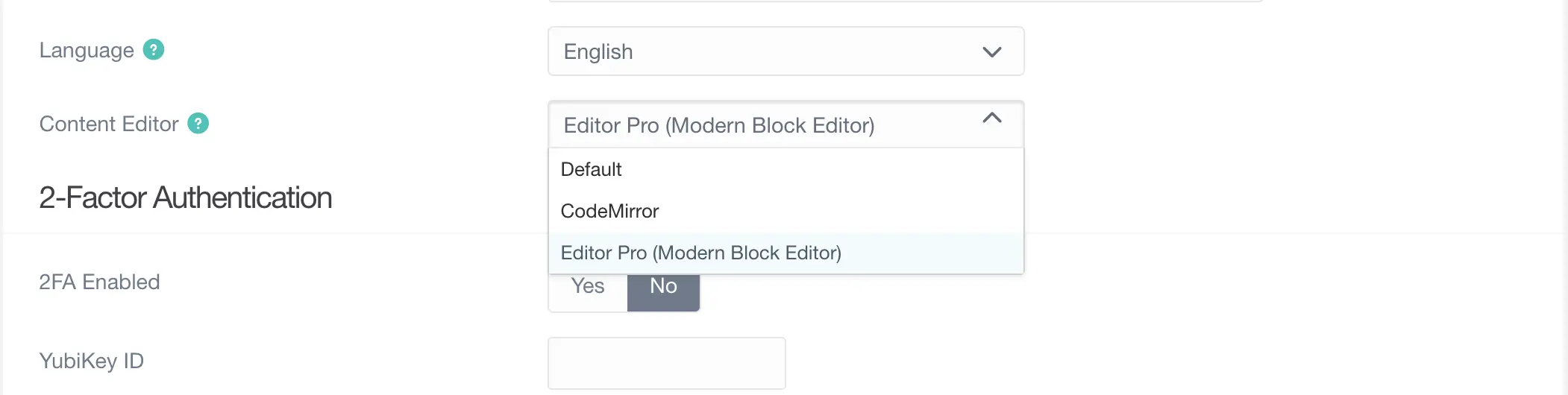
Users can select their preferred editor in their profile settings:
- Click on your user avatar in the admin
- Select "Preferences"
- Choose "Editor Pro" from the Editor dropdown
- Save your preferences
Per-Blueprint Configuration
Specify Editor Pro for specific page types in your blueprints:
form:
  fields:
    header.content:
      type: editor-pro
      label: Content
      validate:
        required: true
Keyboard Shortcuts
Platform Specific Shortcuts
| Action | Windows/Linux | Mac |
|---|---|---|
| Save | Ctrl + S |
⌘ + S |
| Copy | Ctrl + C |
⌘ + C |
| Paste | Ctrl + V |
⌘ + V |
| Cut | Ctrl + X |
⌘ + X |
| Undo | Ctrl + Z |
⌘ + Z |
| Redo | Ctrl + Y |
⌘ + Y |
Ctrl + Shift + Z |
⌘ + Shift + Z |
|
| Bold | Ctrl + B |
⌘ + B |
| Italic | Ctrl + I |
⌘ + I |
| Underline | Ctrl + U |
⌘ + U |
| Strike | Ctrl + Shift + X |
⌘ + Shift + X |
| Link | Ctrl + K |
⌘ + K |
Heading Shortcuts
| Action | Windows/Linux | Mac |
|---|---|---|
| Heading 1 | Ctrl + Alt + 1 |
⌘ + Option + 1 |
| Heading 2 | Ctrl + Alt + 2 |
⌘ + Option + 2 |
| Heading 3 | Ctrl + Alt + 3 |
⌘ + Option + 3 |
| Heading 4 | Ctrl + Alt + 4 |
⌘ + Option + 4 |
| Heading 5 | Ctrl + Alt + 5 |
⌘ + Option + 5 |
| Heading 6 | Ctrl + Alt + 6 |
⌘ + Option + 6 |
List and Block Shortcuts
| Action | Windows/Linux | Mac |
|---|---|---|
| Bullet List | Ctrl + Shift + 8 |
⌘ + Shift + 8 |
| Numbered List | Ctrl + Shift + 7 |
⌘ + Shift + 7 |
| Blockquote | Ctrl + Shift + B |
⌘ + Shift + B |
| Code Block | Ctrl + Alt + C |
⌘ + Option + C |
| Insert Shortcode | Ctrl + Shift + S |
⌘ + Shift + S |
Navigation Shortcuts
| Action | Keyboard |
|---|---|
| Move to next block | Tab (when applicable) |
| Move to previous block | Shift + Tab |
| Exit block (to paragraph) | Enter (twice) |
| Navigate around blocks | ↑ / → / ↓ / ← |
| Select all | Ctrl/⌘ + A |
| Find | Ctrl/⌘ + F |
Table Navigation
| Action | Keyboard |
|---|---|
| Next cell | Tab |
| Previous cell | Shift + Tab |
| New row (when in last cell) | Tab |
| Navigate cells | ↑ / → / ↓ / ← |
| Exit table | Ctrl/⌘ + Enter |
Toolbar Configuration

The toolbar can be customized to show only the tools you need. Available toolbar items:
Text Formatting
bold- Bold textitalic- Italic textunderline- Underlined textstrikethrough- Strikethrough textcode- Inline codesubscript- Subscript textsuperscript- Superscript textremoveformat- Clear formatting
Structure
heading- Heading dropdown (H1-H6)paragraph- Paragraph formatblockquote- BlockquotehorizontalRule- Horizontal line
Lists
bulletList- Bullet listorderedList- Numbered list
Content
link- Insert/edit linkimage- Insert imagetable- Insert tablecodeBlock- Code block with syntax highlighting
Special Blocks
htmlBlock- HTML block preservationshortcodeBlock- Shortcode insertiontwigBlock- Twig template preservationgithubAlert- GitHub-style alerts
History
undo- Undo last actionredo- Redo last action
Separators
|- Visual separator in toolbar
Example toolbar configuration:
toolbar: 'undo,redo,|,heading,bold,italic,|,link,image,|,bulletList,orderedList'Content Types
Rich Text Formatting
Editor Pro supports comprehensive text formatting:
- Bold - Strong emphasis (
**text**or__text__) - Italic - Emphasis (
*text*or_text_) - Underline - Underlined text (
<u>text</u>) - Strikethrough - Deleted text (
~~text~~) - Subscript - Subscript text (
<sub>text</sub>) - Superscript - Superscript text (
<sup>text</sup>) - Code - Inline code (
`code`)
Headings
Six levels of headings are supported (H1-H6). Use the toolbar dropdown or keyboard shortcuts:
# Heading 1
## Heading 2
### Heading 3
#### Heading 4
##### Heading 5
###### Heading 6
Lists
Bullet Lists
* First item
* Second item
  * Nested item
  * Another nested item
* Third item
Numbered Lists
1. First item
2. Second item
   1. Nested item
   2. Another nested item
3. Third item
Links
Links support titles and can be internal or external:
[Link text](https://example.com "Optional title")
[Internal link](/path/to/page)
[Reference link][ref]

[ref]: https://example.com "Reference title"
Images
Images support alt text and titles:

Drag and drop images directly into the editor for automatic upload and insertion.
Tables
Full-featured table support with visual editing:
| Header 1 | Header 2 | Header 3 |
|----------|----------|----------|
| Cell 1   | Cell 2   | Cell 3   |
| Cell 4   | Cell 5   | Cell 6   |
Table features:
- Add/remove rows and columns
- Merge and split cells
- Set header rows/columns
- Resize columns by dragging
- Navigate with Tab/Shift+Tab
Code Blocks
Syntax-highlighted code blocks with language selection:
```javascript
function hello() {
    console.log("Hello, World!");
}
Supported languages include:
* JavaScript/TypeScript
* PHP
* Python
* HTML/CSS
* Markdown
* YAML/JSON
* And many more...

### Blockquotes

Nested blockquotes with proper formatting:

```markdown
> This is a blockquote
>
> > This is nested
> >
> > > Even deeper nesting
GitHub Alerts
Native support for GitHub-style alert blocks:
> [!NOTE]
> Useful information that users should know.

> [!TIP]
> Helpful advice for doing things better.

> [!IMPORTANT]
> Key information users need to know.

> [!WARNING]
> Urgent info that needs immediate attention.

> [!CAUTION]
> Advises about risks or negative outcomes.
Visual Blocks
Editor Pro preserves special content as visual blocks to prevent corruption:
Raw Code Blocks (Dark Grey)
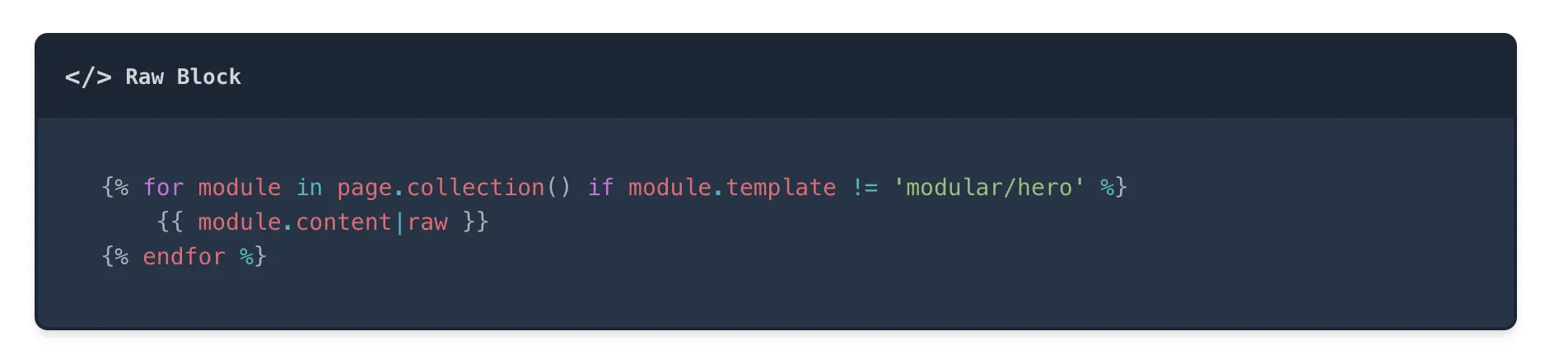
Raw code is either HTML or Twig content is preserved as blue blocks:
- Prevents accidental modification
- Maintains original formatting
- Edit inline with syntax highlighting
- Supports any valid HTML or Twig starting on a new line
Example:
{% for item in page.collection %}
  <h2>{{ item.title }}</h2>
  {{ item.content|raw }}
{% endfor %}
Example:
<div class="custom-widget">
  <h3>Custom HTML</h3>
  <p>This HTML is preserved exactly as written.</p>
</div>
Shortcode Blocks (Green)
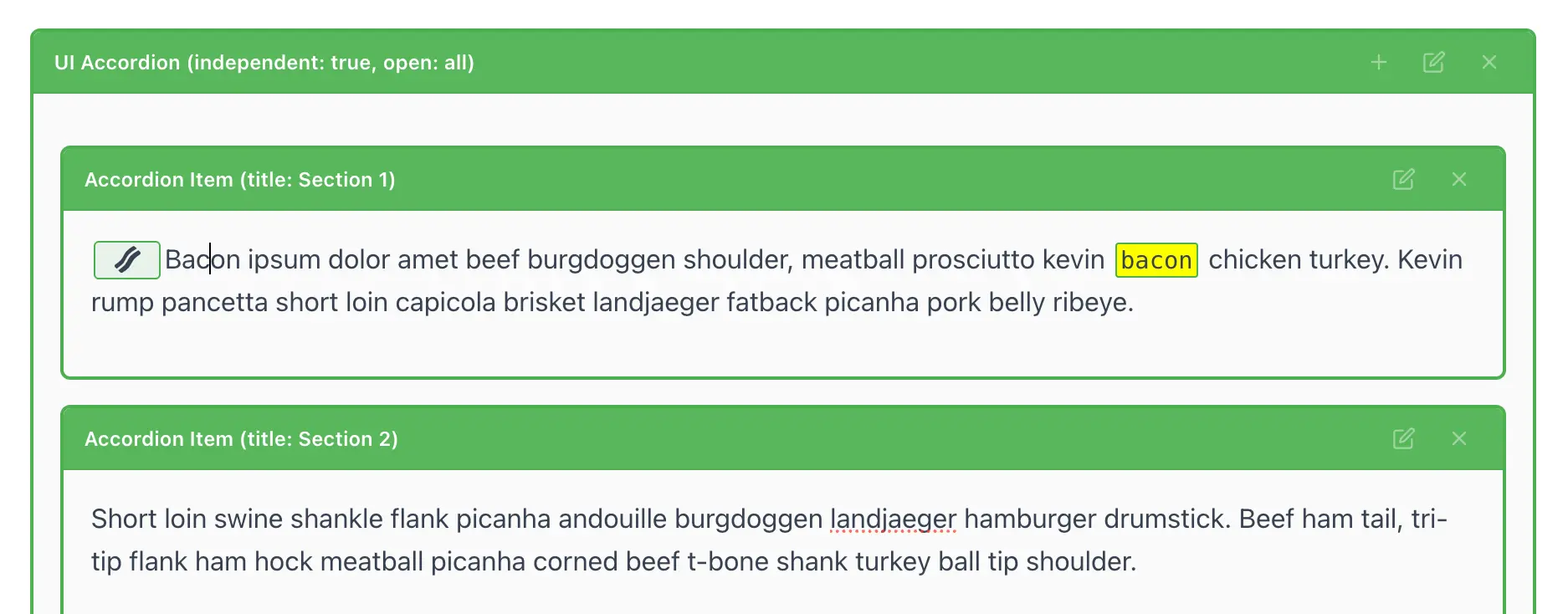
Shortcodes appear as green blocks with visual indicators:
- Shows shortcode name and parameters
- Click to edit via modal dialog
- Supports nested shortcodes
- Live preview when available
Example:
[columns count="2"]
[column]First column[/column]
[column]Second column[/column]
[/columns]
Typography Transformations
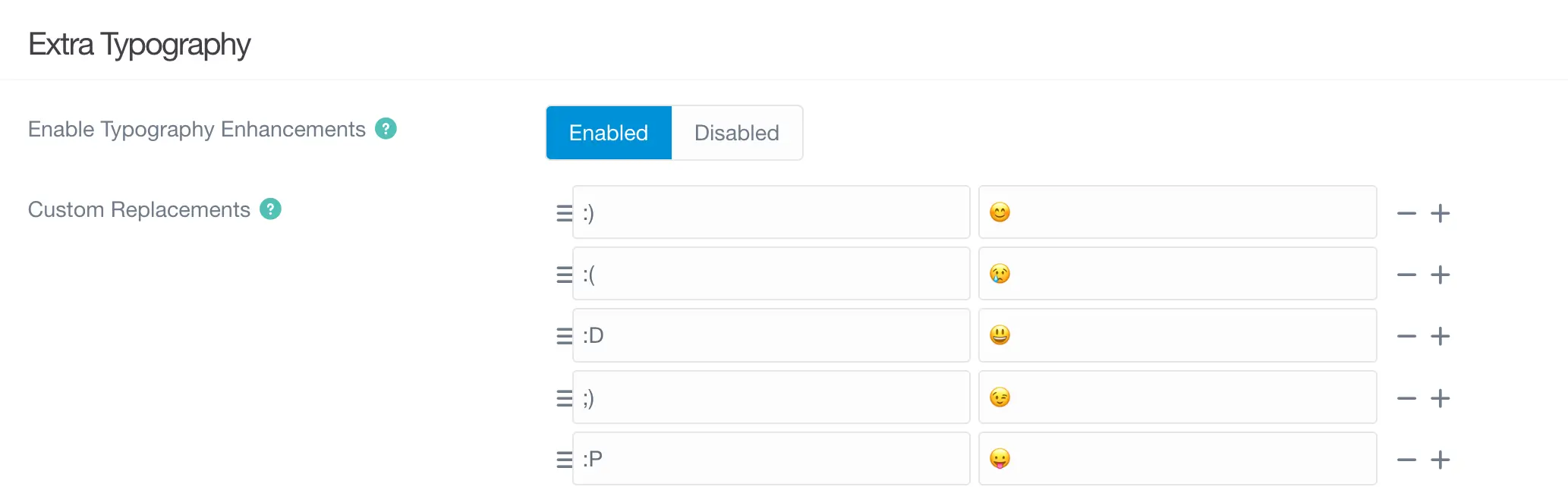
Editor Pro can automatically transform text patterns as you type.
Built-in Transformations
Typography
--→ — (em dash)...→ … (ellipsis)(c)→ © (copyright)(r)→ ® (registered)(tm)→ ™ (trademark)
Quotes
"text"→ "text" (smart quotes)'text'→ 'text' (smart single quotes)
Arrows
->→ →<-→ ←<->→ ↔=>→ ⇒
Fractions
1/2→ ½1/3→ ⅓1/4→ ¼3/4→ ¾
Mathematical
+-→ ±!=→ ≠<=→ ≤>=→ ≥
Custom Transformations
Add your own transformations in the configuration:
extra_typography:
  enabled: true
  custom:
    ':)': '😊'
    ':(': '😢'
    ':D': '😃'
    '->': '→'
    '<3': '❤️'
Language-Specific Transformations
Configure transformations per language:
extra_typography:
  languages:
    fr:
      quotes: ['« ', ' »']
      custom:
        'oe': 'œ'
    de:
      quotes: ['„', '"']
Shortcode Integration
When used with the shortcode-core plugin, Editor Pro provides enhanced shortcode support.
Shortcode Modal
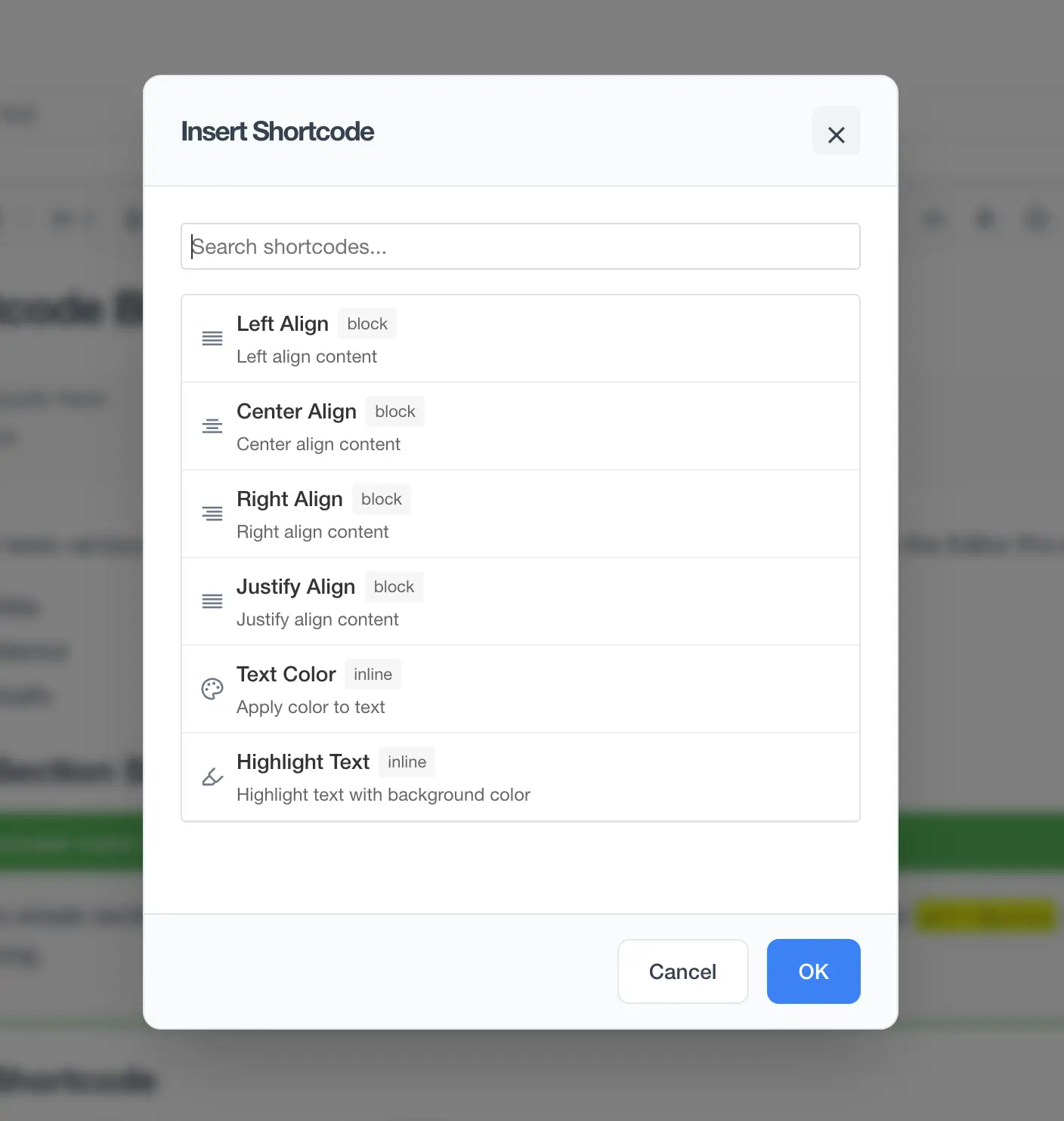
Press Ctrl/⌘ + Shift + S to open the shortcode modal:
- Search for shortcodes by name or description
- Configure parameters through form fields
- Preview the result (if preview is available)
- Insert the shortcode into your content
Supported Field Types
- Text - Single line text input
- Textarea - Multi-line text input
- Select - Dropdown selection
- Checkbox - Boolean toggle
- Number - Numeric input
- Color - Color picker
- Date - Date selector
- File - File/media picker
- Page - Page selector
Nested Shortcodes
Complex shortcodes with parent-child relationships:
[tabs]
  [tab title="First"]
    First tab content
  [/tab]
  [tab title="Second"]
    Second tab content
  [/tab]
[/tabs]
Live Preview
When enabled, shortcodes show live preview in the editor:
plugins:
  shortcode-core:
    live_preview: true
    preview_delay: 500  # milliseconds
Extending Editor Pro
Plugin Integration
Register your plugin with Editor Pro:
<?php
namespace Grav\Plugin;

use Grav\Common\Plugin;

class YourPlugin extends Plugin
{
    public static function getSubscribedEvents()
    {
        return [
            'registerEditorProPlugin' => ['registerEditorProPlugin', 0]
        ];
    }

    public function registerEditorProPlugin($event)
    {
        $plugins = $event['plugins'];

        // Add CSS
        $plugins['css'][] = 'plugin://your-plugin/assets/editor-pro.css';

        // Add JavaScript
        $plugins['js'][] = 'plugin://your-plugin/assets/editor-pro.js';

        $event['plugins'] = $plugins;
        return $event;
    }
}
JavaScript API
Access the Editor Pro API in your JavaScript:
window.EditorPro.registerPlugin({
    name: 'your-plugin',

    init(editorPro) {
        const { editor, toolbar, schema } = editorPro;

        // Add custom button
        toolbar.addButton({
            name: 'customButton',
            icon: '🎨',
            title: 'Custom Action',
            action: () => {
                // Your custom action
                editor.chain()
                    .focus()
                    .insertContent('Custom content')
                    .run();
            }
        });

        // Listen to editor events
        editor.on('update', ({ editor }) => {
            console.log('Content updated');
        });

        // Access editor state
        editor.on('selectionUpdate', ({ editor }) => {
            const { from, to } = editor.state.selection;
            console.log(`Selection: ${from} to ${to}`);
        });
    }
});
Custom Nodes
Create custom TipTap nodes:
import { Node } from '@tiptap/core';

export const CustomWidget = Node.create({
    name: 'customWidget',

    group: 'block',

    content: 'inline*',

    addAttributes() {
        return {
            type: {
                default: 'default',
            },
        };
    },

    parseHTML() {
        return [
            {
                tag: 'div[data-widget]',
            },
        ];
    },

    renderHTML({ HTMLAttributes }) {
        return ['div', { 'data-widget': '', ...HTMLAttributes }, 0];
    },

    addCommands() {
        return {
            setWidget: (attributes) => ({ commands }) => {
                return commands.setNode(this.name, attributes);
            },
        };
    },
});
Custom Marks
Create custom text marks:
import { Mark } from '@tiptap/core';

export const Highlight = Mark.create({
    name: 'highlight',

    addAttributes() {
        return {
            color: {
                default: 'yellow',
            },
        };
    },

    parseHTML() {
        return [
            {
                tag: 'mark',
            },
        ];
    },

    renderHTML({ HTMLAttributes }) {
        return ['mark', HTMLAttributes, 0];
    },

    addCommands() {
        return {
            toggleHighlight: (attributes) => ({ commands }) => {
                return commands.toggleMark(this.name, attributes);
            },
        };
    },
});
Advanced Configuration
Per-Page Configuration
Control Editor Pro behavior per page:
---
title: My Page
editor_pro:
  enabled: true
  toolbar: 'bold,italic,link'
  preserve_html: false
  preserve_twig: true
  typography:
    enabled: false
---
Blueprint Field Options
Advanced field configuration in blueprints:
form:
  fields:
    content:
      type: editor-pro
      label: Content
      toolbar: 'heading,bold,italic,link,image'
      height: 500
      autofocus: true
      placeholder: 'Start writing...'
      typography:
        enabled: true
        arrows: true
        quotes: true
      preserve:
        html: true
        shortcodes: true
        twig: false
Content Preservation Rules
Configure what content types to preserve:
plugins:
  editor-pro:
    preserve:
      html:
        enabled: true
        tags: ['script', 'style', 'iframe']
      shortcodes:
        enabled: true
        list: ['notice', 'columns', 'tabs']
      twig:
        enabled: true
        patterns: ['{{', '{%', '{#']
Performance Optimization
Large Documents
For documents over 50,000 words:
plugins:
  editor-pro:
    performance:
      lazy_blocks: true
      debounce_save: 1000
      max_history: 50
Memory Management
Optimize memory usage:
plugins:
  editor-pro:
    performance:
      clear_history_on_save: true
      compress_history: true
      max_document_size: 5000000  # 5MB
Troubleshooting
Editor Not Appearing
-
Check plugin is enabled
bin/gpm status editor-pro -
Clear cache
bin/grav cache -
Verify user preference
- Check user profile for editor selection
- Ensure "Editor Pro" is selected
-
Check browser console
- Open developer tools (F12)
- Look for JavaScript errors
- Report any errors found
Content Not Saving
-
Check permissions
ls -la user/pages/ -
Verify form processing
- Check for form validation errors
- Ensure required fields are filled
-
Test with simple content
- Try saving plain text only
- Gradually add complex content
Shortcodes Not Working
-
Verify shortcode-core is installed
bin/gpm status shortcode-core -
Check shortcode registration
- Ensure shortcodes are properly registered
- Verify event listeners are set up
-
Enable debug mode
plugins:
 editor-pro:
   debug: true
Performance Issues
-
Check document size
- Large documents may need optimization settings
- Consider splitting very long content
-
Disable live preview
plugins: shortcode-core: live_preview: false -
Reduce toolbar items
- Only include necessary tools
- Minimize custom extensions
Browser Compatibility
-
Check browser version
- Ensure browser meets minimum requirements
- Update to latest version if needed
-
Disable browser extensions
- Ad blockers may interfere
- Try in incognito/private mode
-
Test in different browser
- Try Chrome if using Firefox
- Verify issue is browser-specific
Migration Guide
From NextGen Editor
-
Install Editor Pro
bin/gpm install editor-pro -
Update user preferences
- Change editor selection to "Editor Pro"
- No content migration needed
-
Update custom integrations
- Change event names from
registerNextGenEditorPlugintoregisterEditorProPlugin - Update JavaScript API calls
- Change event names from
-
Test thoroughly
- Review all page types
- Verify shortcode functionality
- Check custom extensions
From Markdown Editor
-
Content is fully compatible
- No conversion needed
- Markdown structure preserved
-
Enable gradually
- Start with specific page types
- Roll out to users progressively
-
Train users
- Provide keyboard shortcut reference
- Explain visual blocks concept
API Reference
PHP Events
registerEditorProPlugin
Register assets and configuration:
public function registerEditorProPlugin($event)
{
    $plugins = $event['plugins'];
    $config = $event['config'];

    // Add assets
    $plugins['js'][] = 'plugin://your-plugin/editor.js';
    $plugins['css'][] = 'plugin://your-plugin/editor.css';

    // Add configuration
    $config['custom_setting'] = true;

    $event['plugins'] = $plugins;
    $event['config'] = $config;
    return $event;
}
onEditorProSave
Process content before saving:
public function onEditorProSave($event)
{
    $content = $event['content'];
    $page = $event['page'];

    // Process content
    $content = $this->processContent($content);

    $event['content'] = $content;
    return $event;
}
JavaScript API
Editor Instance
Access the TipTap editor:
const editor = window.EditorPro.getEditor(fieldId);

// Get/set content
editor.getHTML();
editor.getJSON();
editor.getText();
editor.setContent(content);

// Commands
editor.chain().focus().bold().run();
editor.chain().focus().insertContent('text').run();

// State
editor.isActive('bold');
editor.can().bold();
Toolbar API
Manage toolbar items:
const toolbar = window.EditorPro.getToolbar(fieldId);

// Add button
toolbar.addButton({
    name: 'custom',
    icon: '🎨',
    title: 'Custom',
    action: callback
});

// Remove button
toolbar.removeButton('custom');

// Update button
toolbar.updateButton('custom', {
    disabled: true
});
Schema API
Access and modify document schema:
const schema = window.EditorPro.getSchema(fieldId);

// Register node
schema.registerNode('customNode', nodeSpec);

// Register mark
schema.registerMark('customMark', markSpec);

// Get node/mark
schema.getNode('paragraph');
schema.getMark('bold');
Support
Getting Help
- Documentation - This comprehensive guide
- GitHub Issues - Report bugs
- Discord - Join Grav Discord
- Forum - Grav Forum
Reporting Issues
When reporting issues, include:
- Grav version (
bin/grav version) - Editor Pro version
- Browser and version
- Steps to reproduce
- Error messages from console
- Relevant configuration
Feature Requests
Submit feature requests on GitHub with:
- Use case description
- Expected behavior
- Mockups/examples if applicable
- Priority/urgency
Credits
- TipTap - Modern editor framework
- ProseMirror - Underlying editor engine
- Grav Team - CMS platform
- Trilby Media - Plugin development